Getting Started With UiPath Maestro and Agent Builder
If you've built UiPath robots for a few years, you know the pattern: Studio, Orchestrator, queues, a REFramework process, and a long list of business exceptions that end up in someone's inbox. Agentic automation changes what happens to that list. Instead of a robot giving up on the messy cases, an agent can reason about them, use tools, ask a human when it should, and hand the clean result back to a robot. Maestro is what coordinates all of it.
In this post I'll explain how UiPath's agentic pieces fit together, then walk through building a first agent in Studio Web and plugging it into a Maestro process, using an invoice-exception example most automation developers will recognise. I'll also cover how it's metered and the practices that make the difference between a demo and something you'd put into production.
The big picture
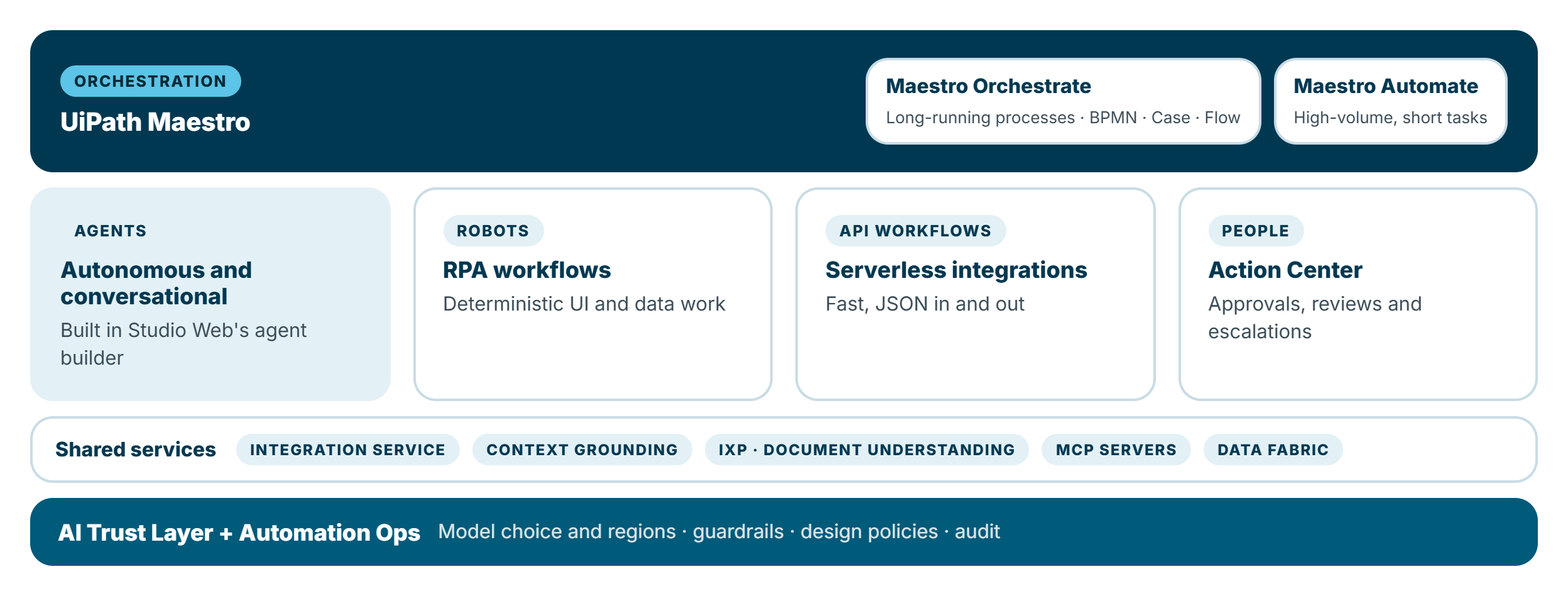
- Agents reason over unstructured input, choose tools and escalate to people. UiPath Agents became generally available in May 2025, and they're built in Studio Web.
- Robots still do the deterministic work: UI automation, data entry, anything with clear rules and high volume.
- API workflows are lightweight, serverless integrations with JSON in and out.
- People take part through Action Center: approvals, reviews and escalations.
- Maestro orchestrates all four. It went GA in April 2025 as UiPath's agentic orchestration layer. Since FUSION 2026 it's positioned as two products:
- Maestro Orchestrate for long-running processes that cross teams and systems and can hold their state for weeks, modelled on BPMN, Case or Flow canvases.
- Maestro Automate for the thousands of small, fast tasks that keep those processes moving.
- Shared services do the heavy lifting underneath: Integration Service connectors, Context Grounding (for retrieval over your documents), IXP and Document Understanding, MCP servers, and Data Fabric.
- The AI Trust Layer and Automation Ops govern it: which models are allowed, in which regions, with which guardrails and design policies.
A note on the name "Agent Builder"
When agents were in preview, UiPath had a standalone Agent Builder. With general availability in May 2025, agent design moved into Studio Web, and the original Agent Builder was retired (agents had to be migrated by October 2025). UiPath's docs still call the agent designer in Studio Web the "agent builder", so that's what I mean in this post.
Anatomy of an agent
Before building one, it helps to know the parts.
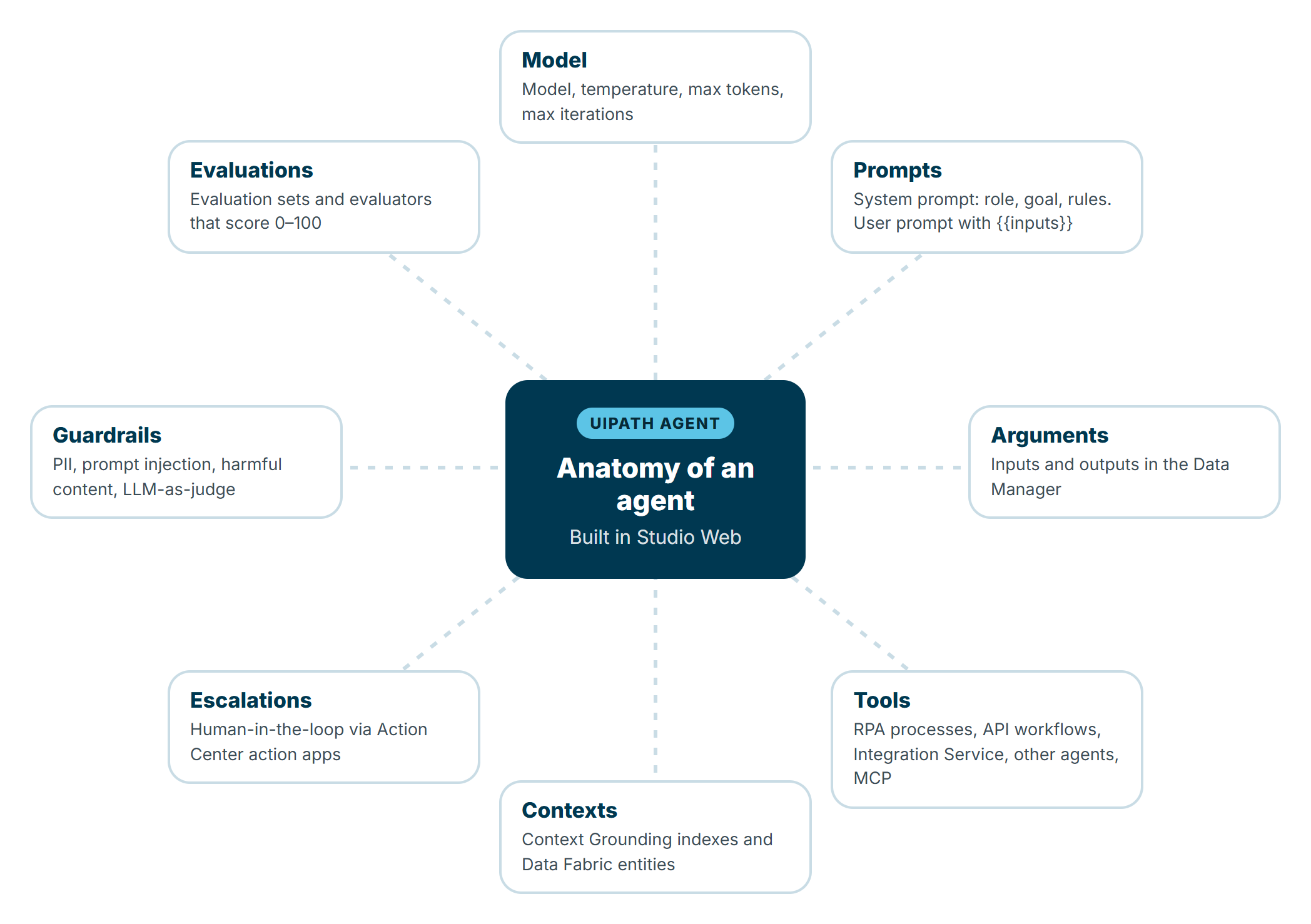
- Model: which LLM to use, plus temperature, max tokens per response and max iterations (how many reasoning loops it may take).
- Prompts: the system prompt defines the role, goal and constraints; the user prompt passes the run's inputs using
{{inputName}}. - Arguments: inputs and outputs, defined in the Data Manager.
- Tools: what the agent can do: published RPA processes, API workflows, Integration Service activities, other agents, agentic processes, and MCP servers.
- Contexts: what the agent can know: Context Grounding indexes over your documents, and Data Fabric entities.
- Escalations: human-in-the-loop through Action Center action apps, with rules for when to escalate and what to do with the outcome.
- Guardrails: PII detection, prompt injection protection, harmful content filtering and more, applied to the agent, its LLM calls or its tools.
- Evaluations: evaluation sets and evaluators that score the agent's behaviour from 0 to 100, so you can test changes before you publish them.
Part 1: Building your first agent
Our scenario: a robot extracts supplier invoices and matches them to purchase orders. Most match. The ones that don't (wrong quantities, price differences, missing PO numbers) used to land in a shared mailbox. We'll build an agent that investigates each discrepancy, proposes a resolution, and escalates to finance when it isn't confident.
1. Create the agent
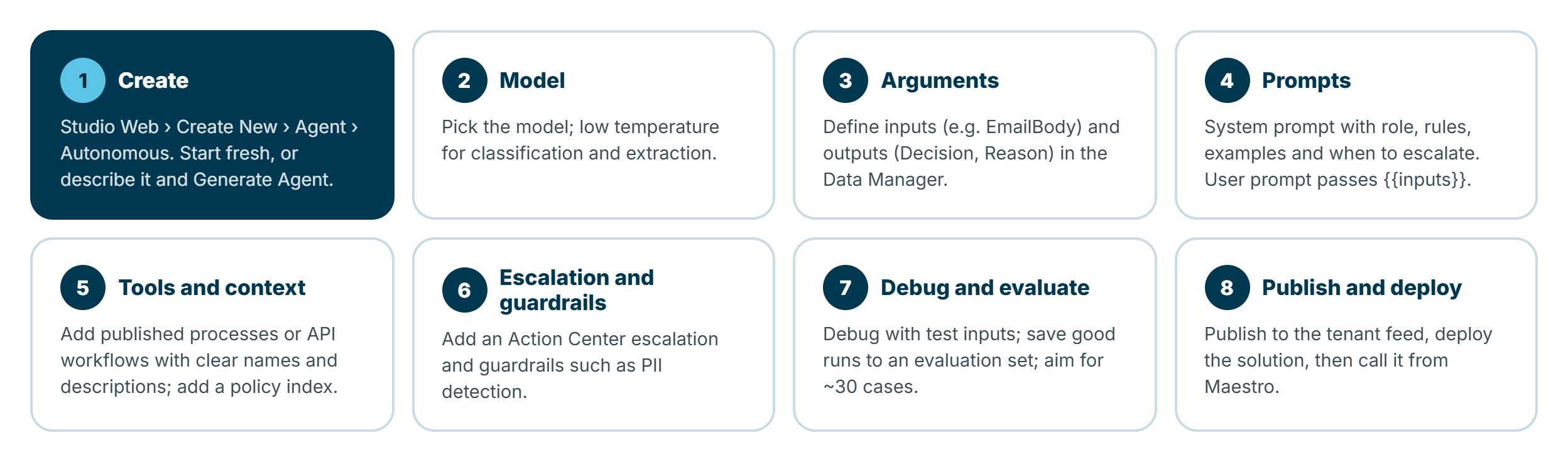
In Studio Web, select Create New > Agent, choose Autonomous (conversational agents are for chat experiences), and either Start fresh or describe what you want and select Generate Agent to let Autopilot draft it. The agent opens in the designer, inside a solution. You can work in the form view or switch to a canvas view; they stay in sync.
2. Choose the model
In Properties, pick the model and set the Temperature. For classification and decision tasks like this one, keep it low (close to 0) so the agent behaves consistently. Set sensible limits for Max. tokens per response and Max. iterations; they cap both cost and runaway reasoning.
3. Define the arguments
In the Data Manager, add:
- Inputs:
InvoiceNumber,PONumber,SupplierId,DiscrepancyDetails - Outputs:
Decision(Resolved / NeedsApproval),ProposedAction,Reason
Clear, typed outputs matter, because Maestro will make routing decisions on them.
4. Write the prompts
The system prompt is where most of the quality comes from. UiPath recommends one responsibility per agent, a defined role, a task breakdown, output and error-handling guidance, and a few examples rather than an exhaustive list of edge cases:
Role: You are an accounts payable analyst who resolves invoice-to-PO discrepancies.

Goal: For each discrepancy, decide whether it can be resolved under the tolerance
policy, and propose the action.

Steps:
1. Read the discrepancy details.
2. Use get_po_details to retrieve the purchase order and goods received.
3. Use get_supplier_history to check previous invoices from this supplier.
4. Check the tolerance policy (context) for the type of discrepancy.
5. If the difference is within tolerance and the cause is clear, set Decision = Resolved.
6. Otherwise set Decision = NeedsApproval. Never approve a price increase above 2%.

Output: Decision, ProposedAction (one sentence), Reason (cite the policy clause).
If a tool fails or data is missing, set Decision = NeedsApproval and explain why.

Examples:
- Quantity 98 vs 100 ordered, goods received 98 -> Resolved: pay for 98.
- Unit price 4% higher, no contract change -> NeedsApproval.
The user prompt passes the inputs:
Invoice {{InvoiceNumber}} for PO {{PONumber}} from supplier {{SupplierId}}.
Discrepancy: {{DiscrepancyDetails}}
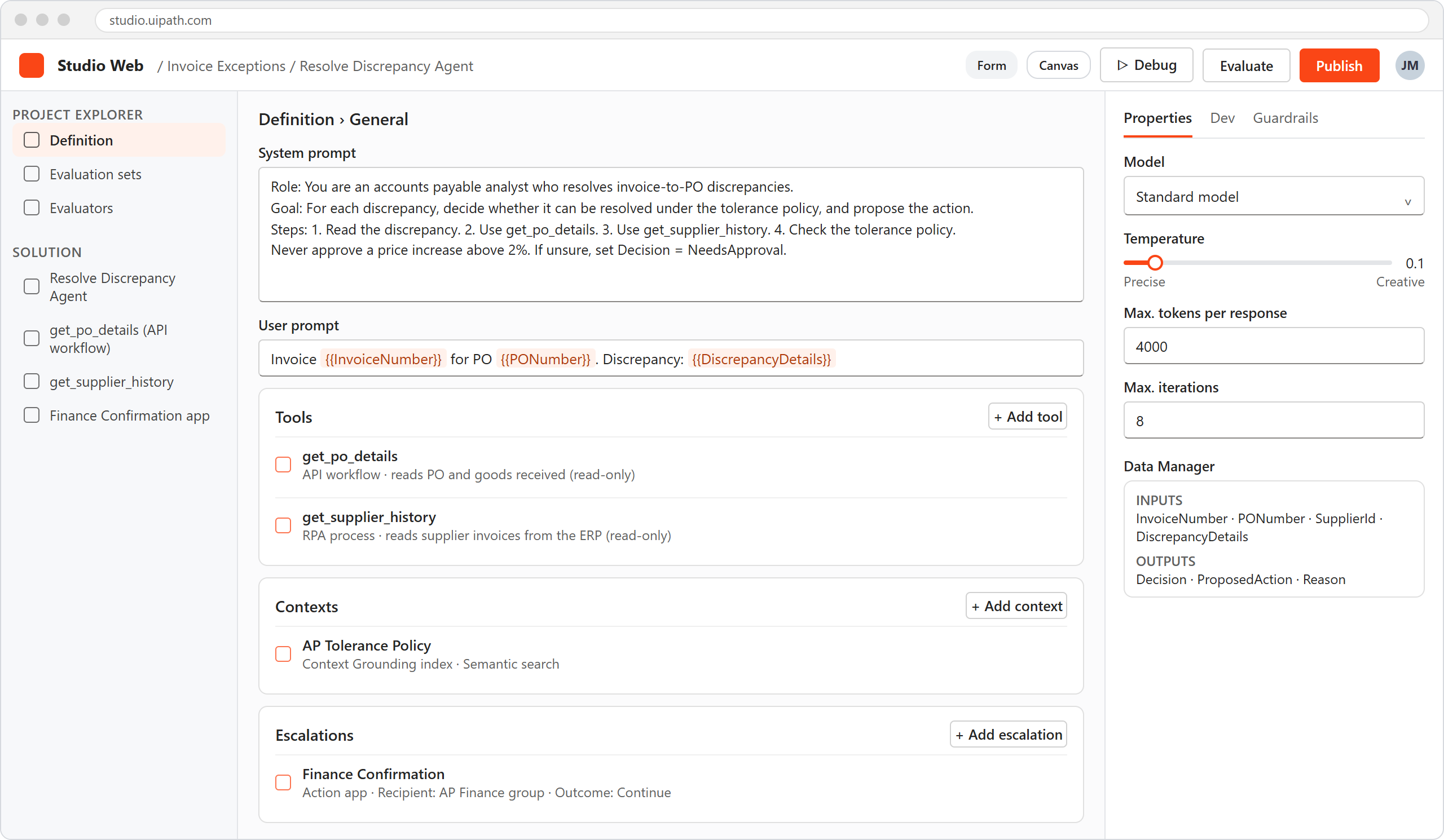
Illustration: the agent designer in Studio Web, with prompts, tools, contexts and escalations in the middle and model settings and the Data Manager on the right. Your screen may look slightly different.
5. Add tools and context
Select Add tool and add the published processes or API workflows the agent needs. Here that's an API workflow to read the PO and goods received, and an RPA process that reads the supplier's history from the ERP. Two tips from UiPath's guidance:
- Name tools by function, in lowercase with no spaces (
get_po_details, notPO Lookup Process v2). - Describe side effects in the tool description: does it only read, or does it write to a system of record? Is it safe to call twice? The agent uses these descriptions to decide what to call.
Then select Add context and add a Context Grounding index over your AP tolerance policy PDF, so the agent can cite the actual clause rather than guessing.
6. Add an escalation and guardrails
Select Add escalation to add a human-in-the-loop step through an Action Center action app (deploy the app first). Give it a Prompt that says when to escalate, a Recipient, the Inputs the reviewer sees, and the Outcome behavior (Continue or End) for each response. You can name the escalation explicitly in the system prompt, for example "before proposing a credit note, raise the Finance Confirmation escalation".
On the Guardrails tab, select Add guardrails. For finance data, PII detection is a sensible start, with the action set to Log while testing and Block or Escalate in production.
7. Debug and evaluate
Enter test inputs and run a debug session. The Execution Trail shows every LLM call and tool call, so you can see exactly why the agent decided what it did. You can run with real or simulated tools, which is handy before your RPA processes are finished.
When a run behaves the way you want, select Add to evaluation set. Build up an evaluation set that covers your common and tricky cases (UiPath suggests around 30 evaluations for a simple agent, and at least double that for complex ones), then run Evaluate set and review the scores. Evaluators range from exact match on structured outputs to LLM-as-a-judge for free-text answers. Every time you change the prompt, model or tools, re-run the set. This is your regression test.
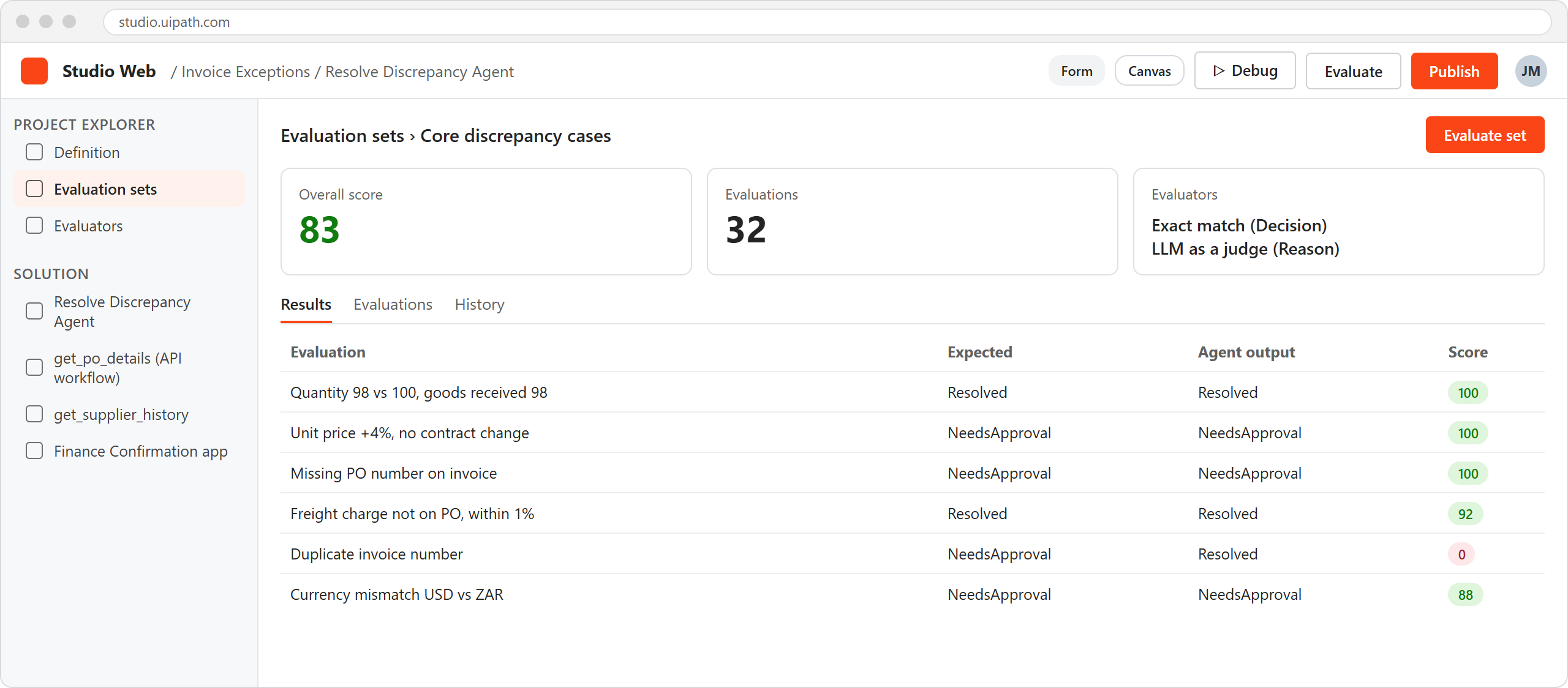
Illustration: evaluation set results for the discrepancy agent, with one failing case to investigate. Your screen may look slightly different.
8. Publish and deploy
Select Publish and choose the feed (your personal workspace or the tenant processes feed). Then deploy the solution from Tenant > Solutions > Packages. Once deployed, the agent appears in Orchestrator and can be started as a job, from a workflow with Run Job, or from Maestro.
Gotcha: callers always run the version configured in Orchestrator. After changing an agent, republish it and upgrade the process, or you'll keep testing the old version.
Part 2: Orchestrating it with Maestro
An agent on its own is useful. An agent inside an end-to-end process, with robots before and after it and people where they're needed, is where the value is. Robots do the predictable work, the agent handles the exceptions, and people decide what the agent can't. Here's the full invoice process:
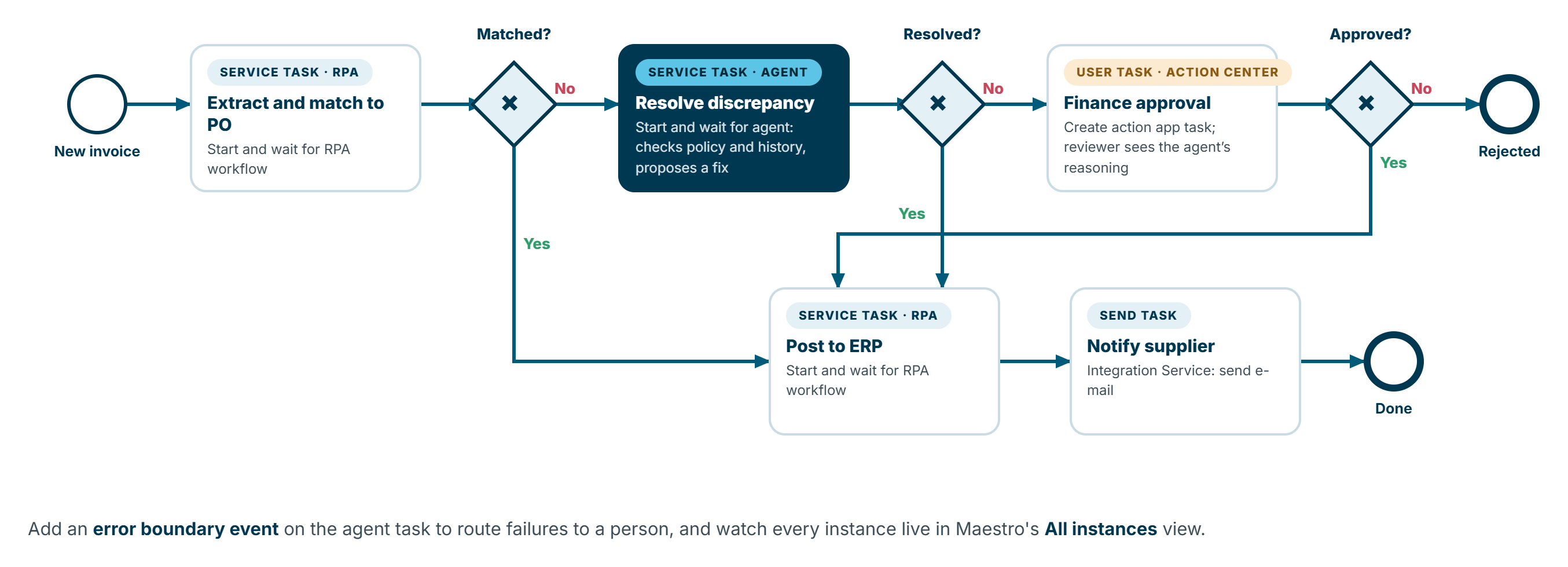
1. Create the process
In Studio Web, select Create New and choose the Maestro BPMN (agentic process) project type. Depending on your tenant's rollout it's labelled Maestro BPMN or Agentic Process. You can also start from Maestro > Start modeling in Automation Cloud. Keep a single .bpmn file per project; extra files break debugging and publishing.
2. Start event
Change the start event to a Message start event and set its implementation to Wait for connector event, for example a new record in Data Fabric or a new e-mail, so each invoice starts its own process instance.
3. Service task: the robot
Add a Service task, set Implementation > Action to Start and wait for RPA workflow, and select your extraction and matching process. Map its outputs to process variables.
4. Gateway: matched?
Add an exclusive gateway with conditions on the robot's output, for example vars.Matched == true to go straight to posting, and the default path to the agent.
5. Service task: the agent
Add another Service task with Start and wait for agent, select the deployed agent, and map its inputs from earlier steps. Its outputs (Decision, ProposedAction, Reason) become process variables. Add an Error boundary event on this task to route failures to a person rather than failing the instance.
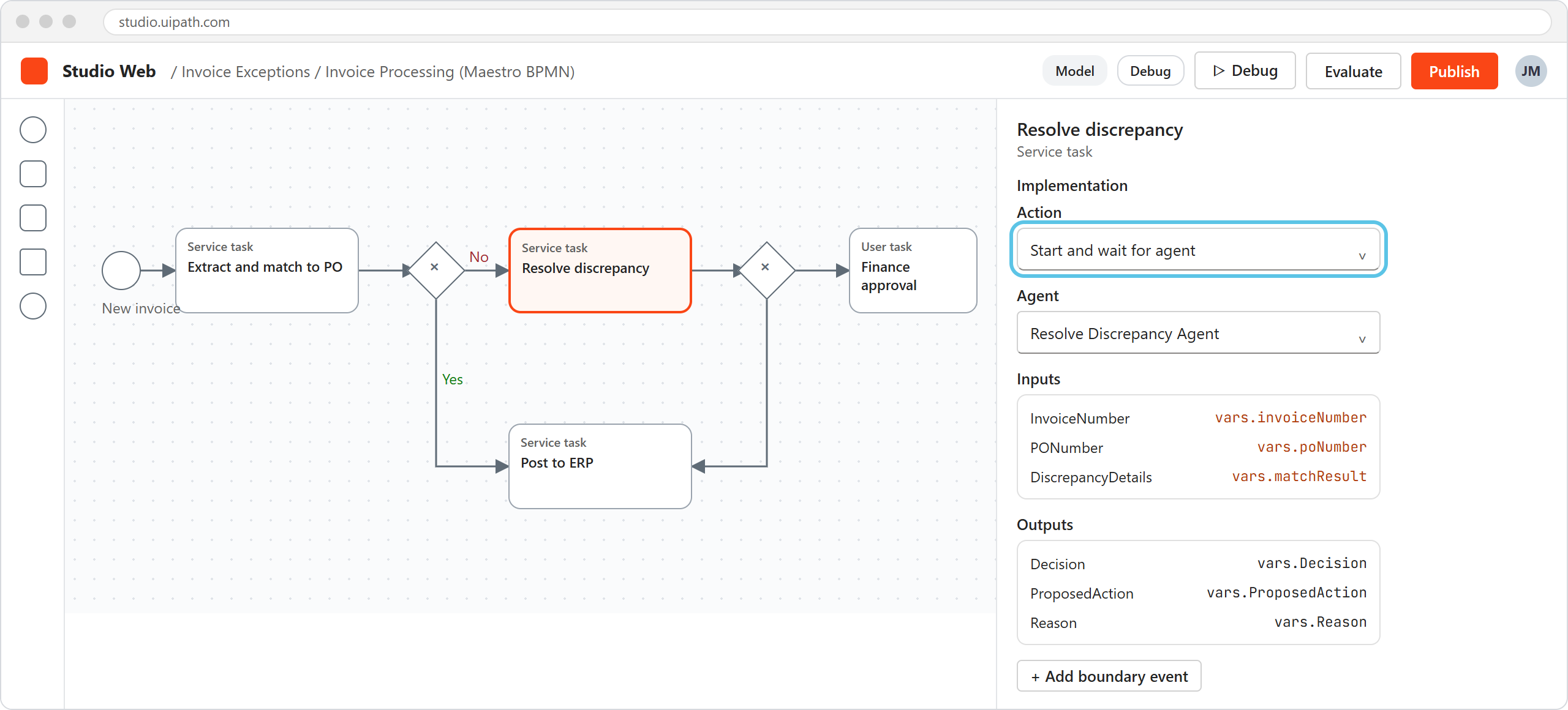
Illustration: a Maestro BPMN process with the agent service task selected, showing Start and wait for agent and its input and output mappings. Your screen may look slightly different.
6. Gateway and user task: people where needed
Route on vars.Decision == "Resolved" to posting. Everything else goes to a User task using Create action app task, where a finance reviewer sees the invoice, the agent's proposed action and its reasoning, and approves or rejects. A final gateway routes approved invoices to posting and rejected ones to an end event.
7. Finish with robots and notifications
A last Service task posts to the ERP with Start and wait for RPA workflow, a Send task notifies the supplier through Integration Service, and an end event closes the instance.
8. Debug, publish and monitor
Use Debug or Debug step-by-step to run the process, inspect and update variables, and see incidents. Breakpoints can be added once debugging starts. Then publish the solution, deploy it, and open Maestro > your process > All instances to watch live instances: where each one is, how long steps take, which ones are stuck, with options to retry, migrate or fix variables. The built-in dashboards (powered by Insights) show completed instances, incidents, faulted elements and duration outliers, and a heatmap on the model shows where time goes.
When to use an agent (and when not to)
UiPath's guidance is refreshingly direct: agents shine when the path to the outcome can't be hard-coded. Workflows excel at high-volume, repeatable work with clear rules.
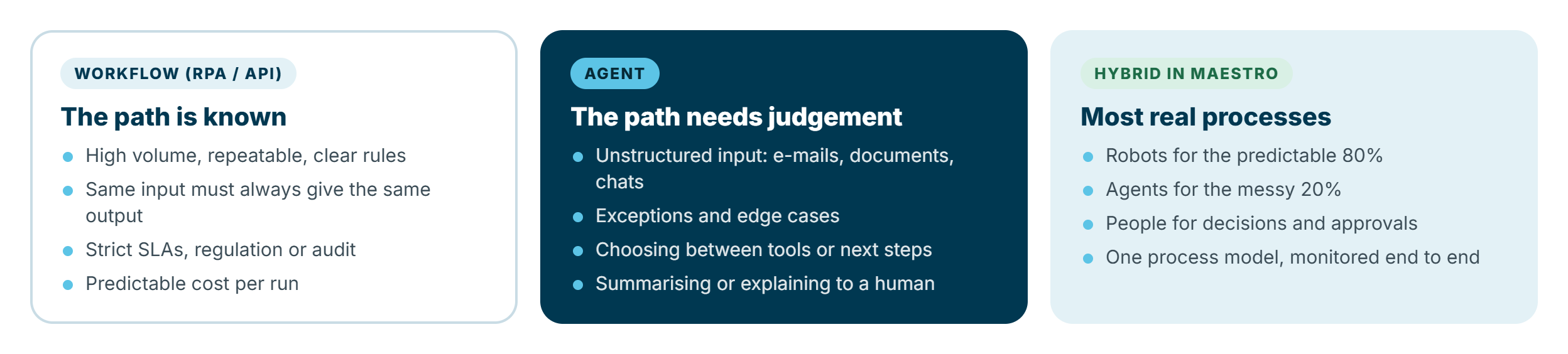
Use a workflow when identical inputs must give identical outputs, when SLAs or regulation are strict, or when you need predictable cost per run. Use an agent for unstructured input, exceptions and judgement calls. In practice, most real processes are a hybrid: robots for the predictable 80%, agents for the messy 20%, and people for the decisions that matter. That's exactly what Maestro is designed to model.
How it's metered
Under UiPath's Unified Pricing, agents and Maestro consume Platform Units (PU):
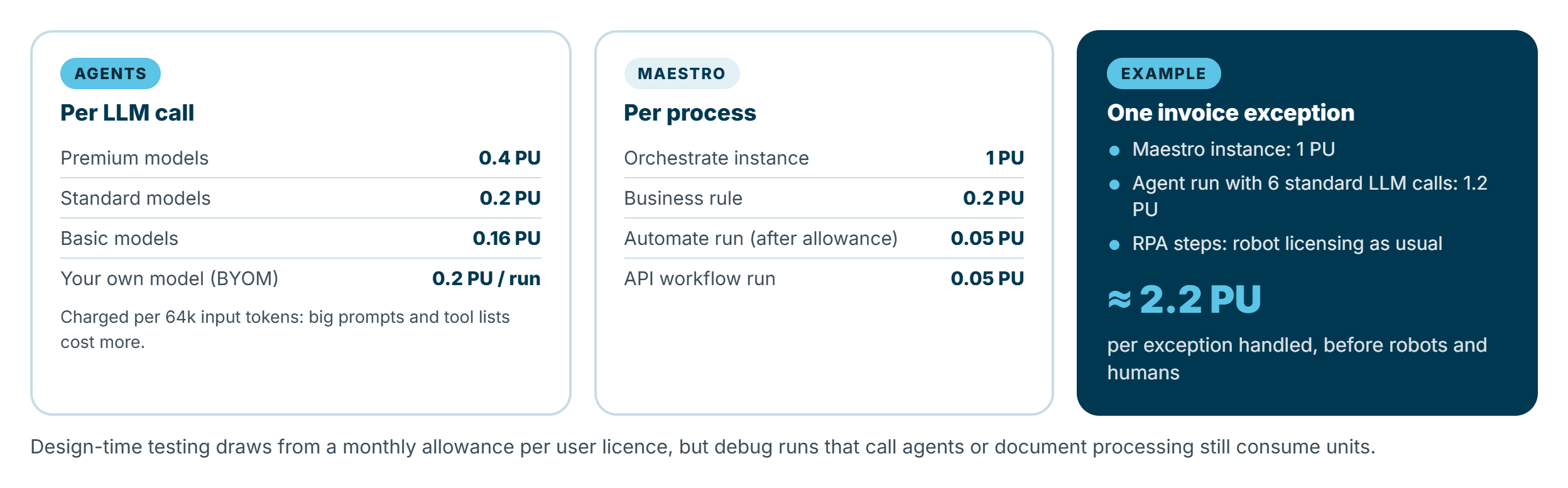
- Agents are charged per LLM call: 0.2 PU for standard models, 0.4 PU for premium models and 0.16 PU for basic models (bring-your-own-model is 0.2 PU per run). Each call is charged in 64k input-token blocks, so long system prompts, large contexts and long tool lists cost more.
- Maestro Orchestrate is 1 PU per process instance, plus 0.2 PU per business rule executed.
- Maestro Automate includes a monthly allowance of runs (10,000 on Standard, 50,000 on Enterprise), then 0.05 PU per run.
- API workflows are 0.05 PU per execution.
- Design time: testing in Studio Web draws on a monthly allowance tied to user licences, but debug runs that call agents or document processing still consume units.
So one invoice exception in our example is roughly 1 PU for the instance plus about 1.2 PU for an agent run with six standard LLM calls, before robot licensing and the reviewer's time. That's the number to compare with what a manual exception costs you today. These are the published rates as I write this. On the older Flex plan the units are different (Agent Units), and your own contract may differ, so confirm with your UiPath account team.
Good practices and gotchas
- One responsibility per agent. Several focused agents orchestrated by Maestro beat one agent that does everything.
- Low temperature for decisions. Save creativity for drafting text.
- Treat tool descriptions as code. Clear names, inputs, outputs and side effects; supported argument types only.
- Escalate by design. Decide up front which decisions need a human, and make the escalation explicit in the prompt.
- Build the evaluation set early and re-run it on every change, especially when a model is retired. UiPath automatically moves agents on retired UiPath-managed models to a replacement model, which can change behaviour.
- Govern centrally. Use the AI Trust Layer policy to choose which model providers and regions are allowed, and Studio Web design policies to enforce limits (for example maximum temperature or a required escalation) before an agent can be published.
- Watch token growth. Every tool definition and context chunk adds input tokens to every call.
- Republish and upgrade after every change, as covered above.
Where Autopilot fits
Autopilot speeds all of this up. In Studio Web, it can generate an agent from a description, generate evaluation sets, suggest prompt improvements and review your agent with an A-to-F grade (in preview). In Maestro, it can help draft process models. Since August 2026, Autopilot is also generally available as a coding agent in Studio Desktop. And if you work in VS Code with tools like Claude Code or GitHub Copilot, Maestro Flow (GA September 2026) gives coding agents a developer-first orchestration canvas on the same Maestro engine.
Summary
- Maestro orchestrates agents, robots, API workflows and people; agents handle the judgement; robots handle the predictable work.
- Build agents in Studio Web: model, prompts, arguments, tools, context, escalations, guardrails and evaluations.
- Put agents inside processes with Maestro's service tasks, gateways and user tasks, and monitor every instance live.
- Meter carefully: per LLM call for agents, per instance for Maestro, and keep prompts and tool lists lean.
- Start with your exception queue. It's the most natural first agentic use case for any RPA team.
If you're coming from the Microsoft side, my posts on taking a Copilot Studio agent to production and Copilot Studio computer use cover the equivalent ground, and the updated UiPath vs Power Automate comparison puts the two side by side. For a deeper look at agents working together, see Practical Implementation of Multi-Agent Systems.
UI labels, features and rates reflect UiPath's documentation as at October 2026, and change frequently. Check the docs for your tenant's current version.