Copilot Studio Computer Use: Automating Apps Without APIs

Every automation developer has met that system. The supplier portal with no API. The 20-year-old desktop app finance still runs on. The government website that changes its layout every few months. For years, the answer was RPA: record the screen, build selectors, and fix the bot every time someone moves a button.
Copilot Studio's computer use offers a different answer. Instead of following fixed selectors, an AI model looks at the screen, decides what to do and clicks, types and scrolls like a person would. If the layout changes, it adapts. Microsoft's own one-liner is: if a person can use an app or website, computer use can too.
Computer use became generally available in May 2026. In this post I'll explain how it works, where it runs, how to set it up, what it really costs, how to secure it, and, most importantly, when you should not use it.
What computer use is
Computer use is a tool you add to a Copilot Studio agent. When the agent decides it needs that tool, a computer-using model (Microsoft calls these CUA, computer-using agents) takes control of a virtual mouse and keyboard on a Windows machine and works through your instructions.
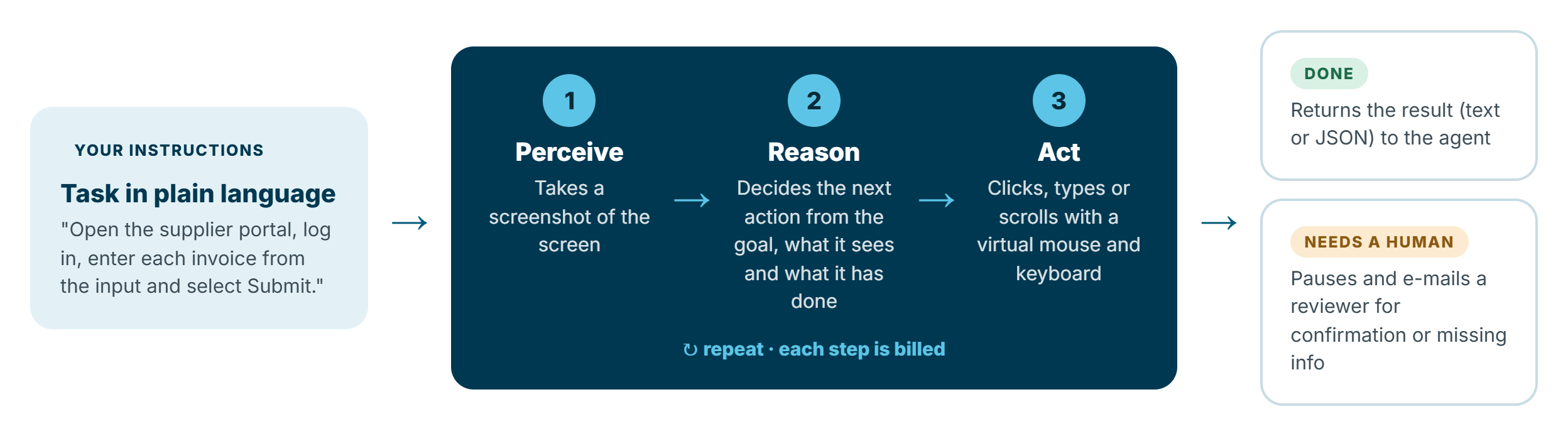
Under the hood it's a loop:
- Perceive: take a screenshot of the screen.
- Reason: work out the next action from the goal, what's on screen and what it has already done.
- Act: click, type or scroll.
It repeats until the task is complete, or until it needs a human (for confirmation, missing information, or because something looks off). Each pass through that loop is a step, and steps are what you pay for. Keep that in mind; it comes up again under costs.
One requirement catches people out: computer use is only available for agents with generative orchestration switched on.
How it got here
- April 2025: early-access research preview.
- September 2025: public preview (US environments only), with a hosted browser, support for your own machines, stored credentials and an allow-list.
- January 2026: more model choice, built-in credentials, session replay in the audit logs and Cloud PC pools.
- May 2026: generally available, with broader geographic availability, model choice across OpenAI and Anthropic, and stronger credential management.
Where it runs
You choose where computer use runs in the tool's settings. There are three options, and the choice matters more than it first appears.
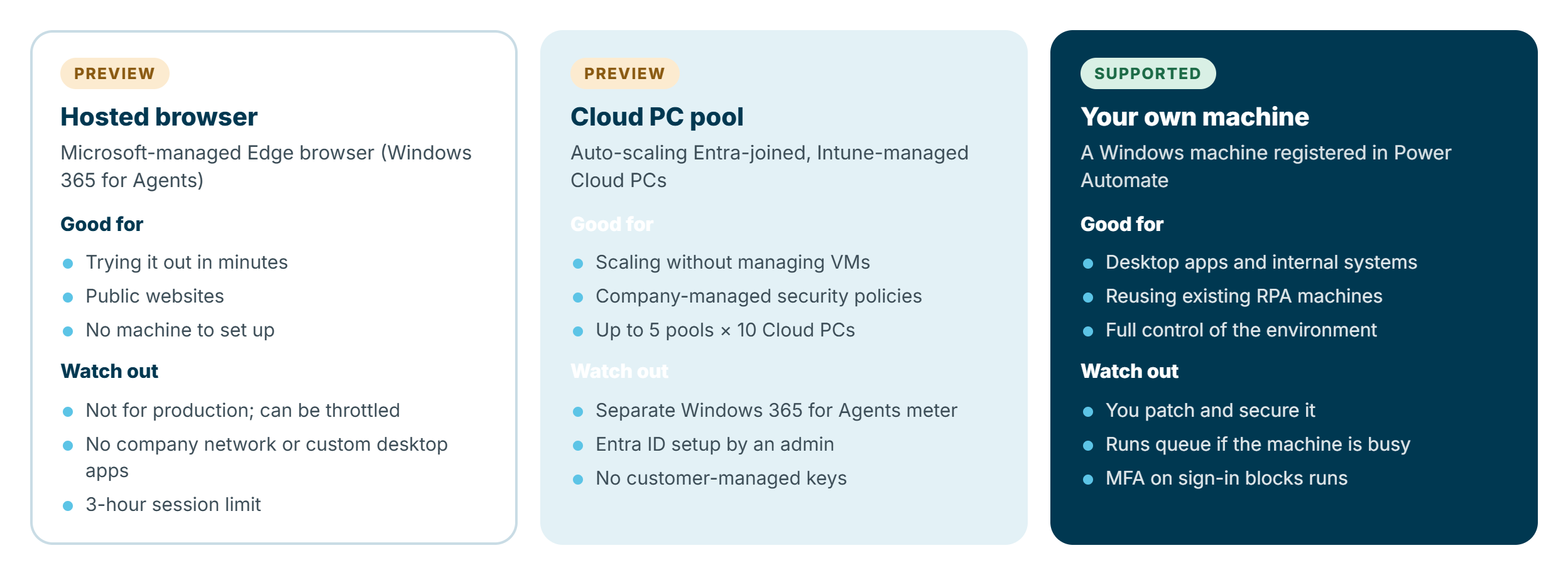
Hosted browser (preview). A Microsoft-managed Edge browser powered by Windows 365 for Agents. Nothing to install, so it's perfect for trying computer use out. It isn't joined to your company network, can't run your own desktop apps, sessions are capped at three hours, and Microsoft says it's not recommended for production.
Cloud PC pool (preview). Entra-joined, Intune-managed Cloud PCs that scale automatically: up to five pools per environment, each with up to ten Cloud PCs. Your company security policies apply, and you don't manage the VMs. You'll need an admin to set up Entra ID authentication, and the pool is billed on a separate Windows 365 for Agents meter.
Your own machine. A Windows machine registered in Power Automate (the same way you register machines for desktop flows), with Enable for computer use switched on in its settings. This is the option for internal systems and desktop apps, and the most familiar route if you already run RPA. If the machine is busy, runs queue up and execute in order.
If the machine's sign-in requires MFA, runs fail. Plan for this up front with your identity team (for example certificate-based authentication or a policy exception for the automation account), rather than discovering it in testing.
Models
You pick the model per tool. At the time of writing, the generally available models are OpenAI's Computer-Using Agent model, GPT-6 Sol and Anthropic's Claude Sonnet 4.5, with newer Claude models listed as experimental. Anthropic models need an admin to allow external models in the environment.
The model list changes often, so check the current table in Microsoft's documentation before you build. The important distinction for budgeting is standard versus premium models: premium models cost three times as much per step.
Setting up your first computer use tool
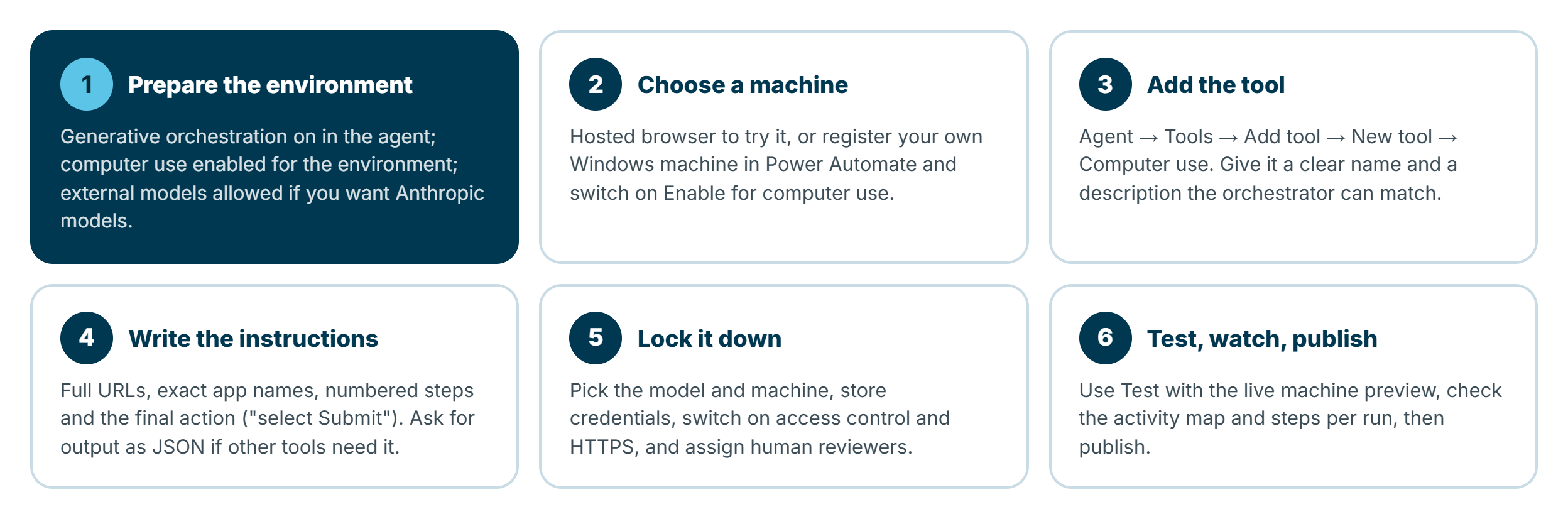
1. Prepare the environment
- Turn on generative orchestration in your agent.
- Make sure computer use is enabled for the environment. Admins control this in the Power Platform admin center under Manage > Environments > Settings > Product > Features > Computer use.
- If you want Anthropic models, ask an admin to allow external models.
2. Choose a machine
To experiment, use the hosted browser. For anything real, register a Windows machine:
- Install Power Automate for desktop (version 2.61.132.25266 or later) with the machine runtime, and the Power Automate browser extension.
- Sign in to the Power Automate machine runtime app and register the machine to your environment.
- In Power Automate, go to Machines, open the machine, select Settings, switch on Enable for computer use, and Save.
3. Add the tool
In your agent, go to Tools > Add tool > New tool > Computer use. Enter your instructions (templates are available to start from) and select Add and configure.
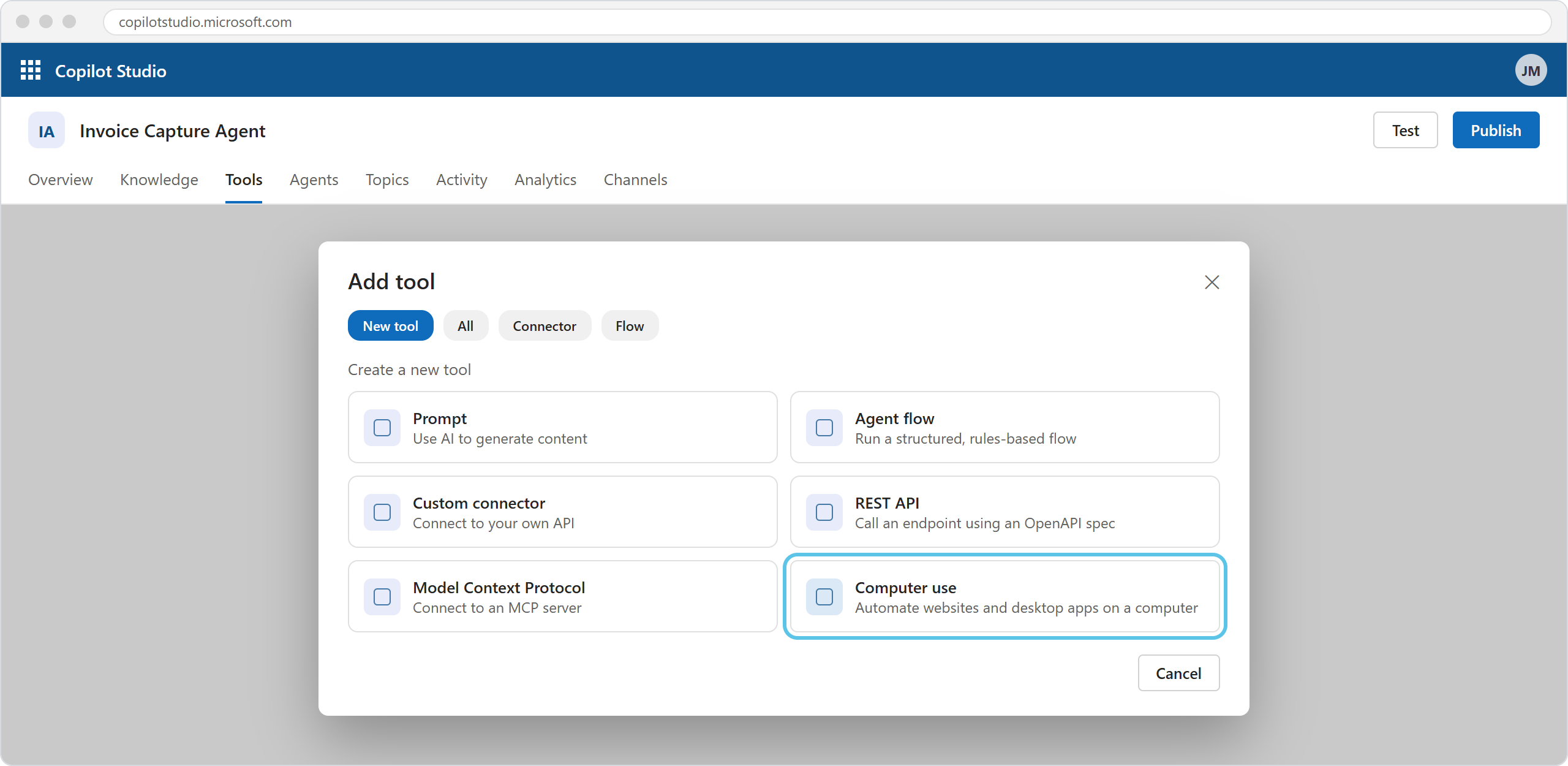
Illustration: adding a computer use tool from the Add tool dialog. Your screen may look slightly different.
Give the tool a clear Name and Description. The description isn't documentation; it's how the orchestrator decides when to use the tool, so describe the task and when it applies.
4. Write the instructions
This is where most of the quality comes from. Microsoft's guidance, and my experience, boil down to: be specific, be explicit, and number your steps.
Goal: capture supplier invoices in the Contoso supplier portal.

1. Open https://portal.contoso.example/login
2. Sign in with the stored credentials for portal.contoso.example.
3. Select "Invoices" in the left menu, then "New invoice".
4. For each invoice in the input:
   a. Enter the Supplier number, Invoice number, Invoice date (format DD/MM/YYYY) and Amount (no currency symbol).
   b. Select "Validate". If a red error message appears, stop and report the invoice number and the message.
   c. Select "Submit". No need to ask for permission.
5. When all invoices are done, return a JSON object:
   {"captured": [list of invoice numbers], "failed": [{"invoice": "...", "error": "..."}]}
A few things that make a big difference:
- Full URLs and exact app names, not "go to the portal".
- State the final action explicitly ("select Submit, no need to ask"), otherwise the agent may stop and ask for confirmation.
- Tell it what to do when things go wrong: what counts as an error and how to report it.
- Ask for structured output (plain text or a JSON object) so other tools in the agent can use the result.
5. Lock it down
Before testing with anything real, configure:
- Model and Machine.
- Credentials to use. Maker-provided credentials is the default and suits autonomous agents, but be careful: if you share the agent, everyone using it acts with your access on that machine. End user credentials requires each user to have credentials for the machine.
- Stored credentials for sign-ins inside websites and apps, kept in Power Platform's encrypted internal storage or in Azure Key Vault. Never put passwords in your instructions.
- Access control: an allow-list of websites and desktop apps, plus Enforce HTTPS. It's off by default, so the tool can use any site until you switch it on.
- Human supervision: who gets asked when the agent needs confirmation or help.
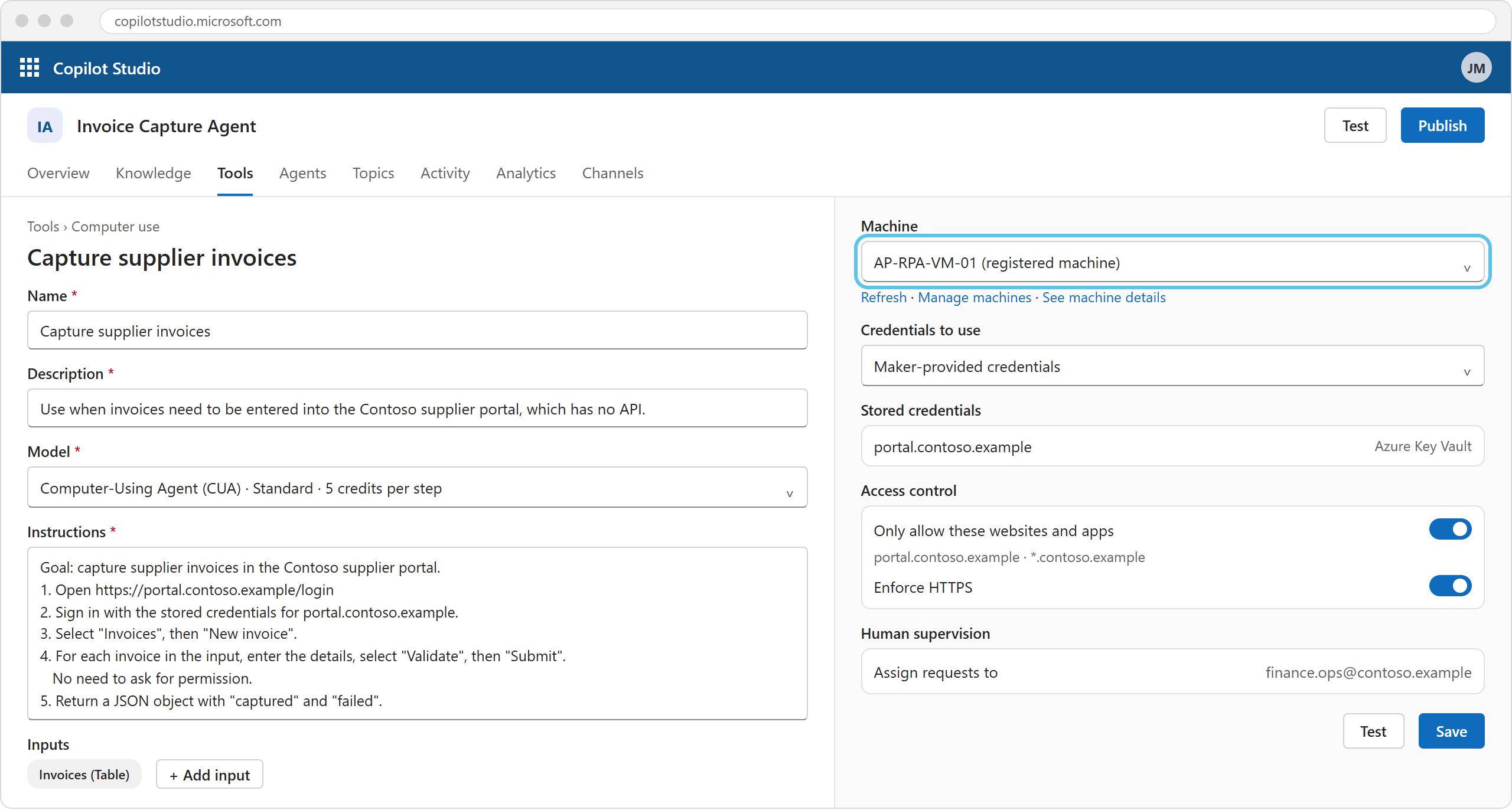
Illustration: a configured computer use tool, with instructions on the left and machine, credentials, access control and human supervision on the right. Your screen may look slightly different.
6. Test, watch and publish
Select Save, then Test. You'll see a step log on the left and a live preview of the machine on the right. Watch a few runs end to end. You'll learn more about your instructions in five minutes of watching than in an hour of reading logs. Then check the agent's Activity for the run: the activity map shows each step with its reasoning and screenshot.
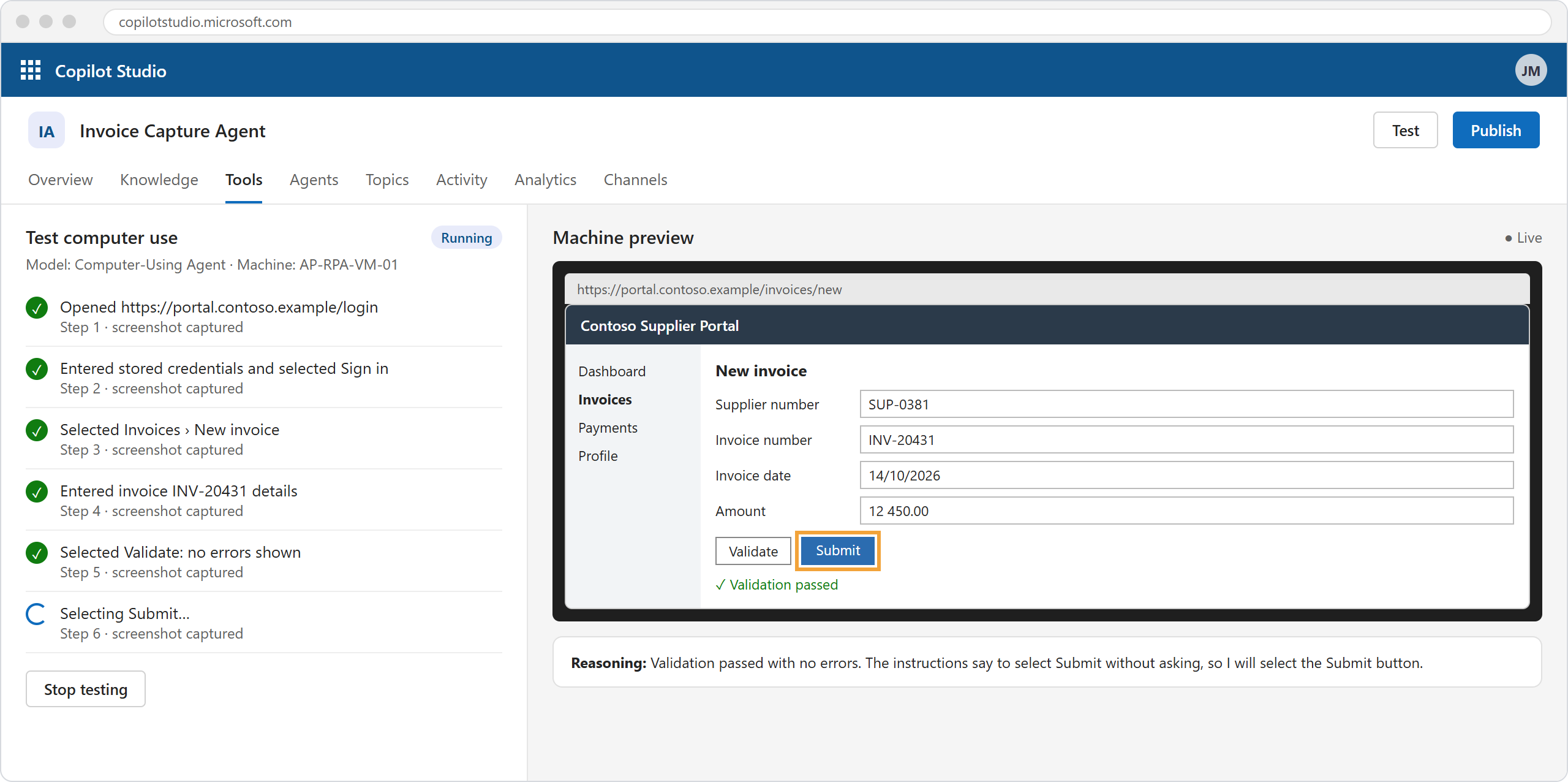
Illustration: testing computer use, with the step log on the left and a live preview of the machine on the right. Your screen may look slightly different.
Computer use works best in autonomous agents (triggered by an event or schedule). In conversational channels like Teams it works, but users see reasoning messages and screenshots in the chat, and each user may need credentials for the machine.
What it costs
Computer use is billed in Copilot Credits, at the agent action rate: 5 credits per step with a standard model and 15 per step with a premium model. A "step" can include more than one low-level action, but you won't know exactly how many steps a task takes until you test it.
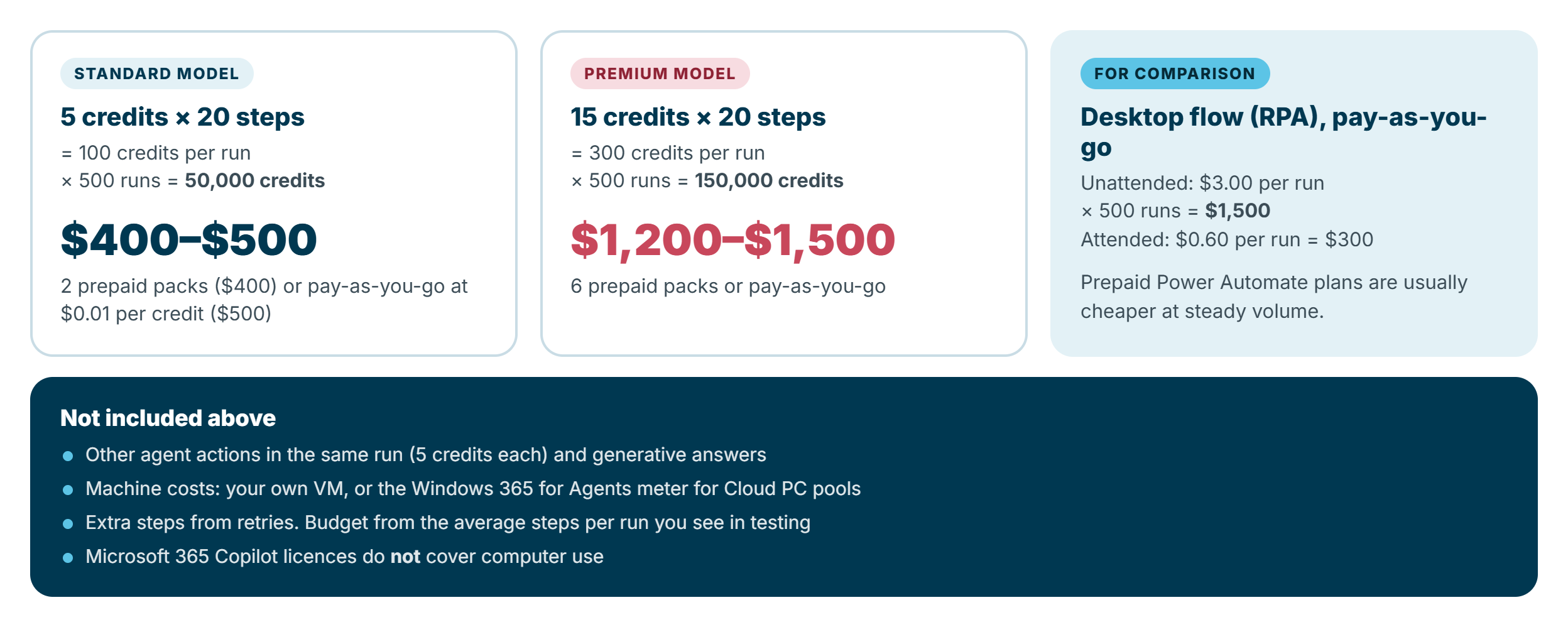
Using list prices: 25,000 credits cost $200 per month as a prepaid pack, or $0.01 per credit pay-as-you-go. A 20-step task run 500 times a month uses 50,000 credits (about $400–$500) on a standard model, or 150,000 credits (about $1,200–$1,500) on a premium model.
Three things that surprise people:
- Microsoft 365 Copilot licences don't cover it. Many agent actions are free for users with an M365 Copilot licence, but computer use is explicitly excluded.
- Machine costs are separate. Your own VM costs what it costs; Cloud PC pools have their own Windows 365 for Agents meter (with a free allowance to get started).
- Steps vary. Retries, pop-ups and slow pages add steps. Budget from the average steps per run you see in testing, and set a monthly cap per agent in the Power Platform admin center so a misbehaving agent can't run up a bill.
For context, a pay-as-you-go unattended desktop flow run is $3.00, and prepaid Power Automate plans are usually cheaper again at steady volume. Computer use isn't automatically cheaper or more expensive than RPA. It depends on how many steps the task takes and how often it runs.
Computer use, RPA or an API?
This is the question I get most, and the honest answer is that computer use is rarely the first choice, but it's often the right one for the gaps everything else leaves. Start at the top of the decision tree and work down:
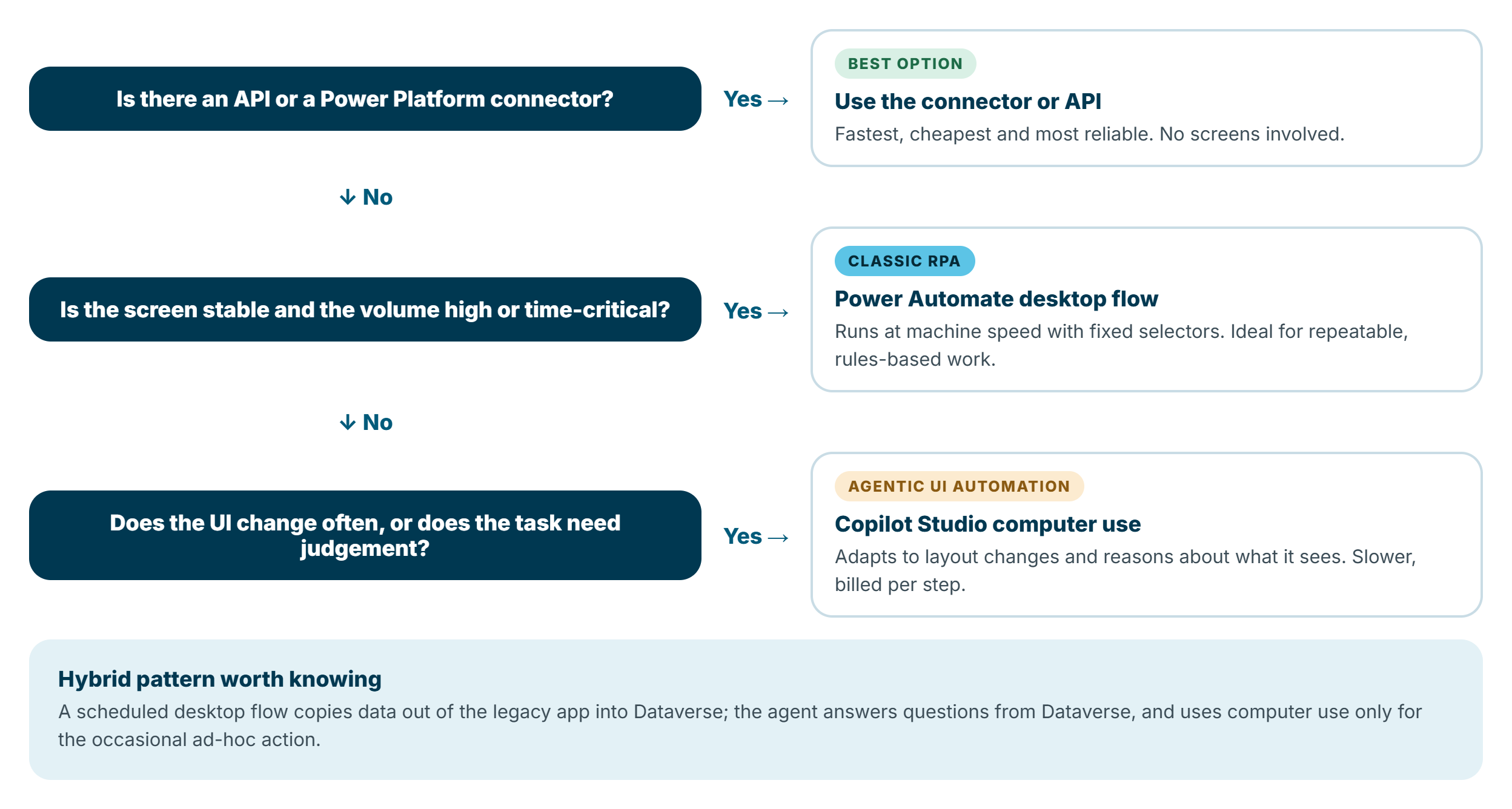
- If there's an API or connector, use it. It's faster, cheaper, more reliable and easier to secure than anything that drives a screen.
- If the screen is stable and volume is high or time-critical, use a desktop flow. RPA runs at machine speed, behaves the same every time and is cheap per run at scale.
- If the UI changes often, varies between apps, or the task needs judgement, use computer use. This is where fixed selectors break and an adaptive model earns its keep: low-to-medium volumes, ad-hoc tasks, and systems where you'd otherwise be rebuilding a bot every quarter.
There's also a hybrid pattern worth knowing. Use a scheduled desktop flow to copy data out of a legacy app into Dataverse; let the agent answer questions from Dataverse; and only use computer use for the occasional action that genuinely needs the live system. You get RPA's speed for bulk work and computer use's flexibility for the long tail.
It's also worth knowing that Microsoft deprecated Power Automate's "Record with Copilot" (AI recorder) and points people to computer use in Copilot Studio instead. That tells you where Microsoft sees UI automation heading.
Securing it
An agent that can click anything a person can click needs at least the controls you'd give a new employee.
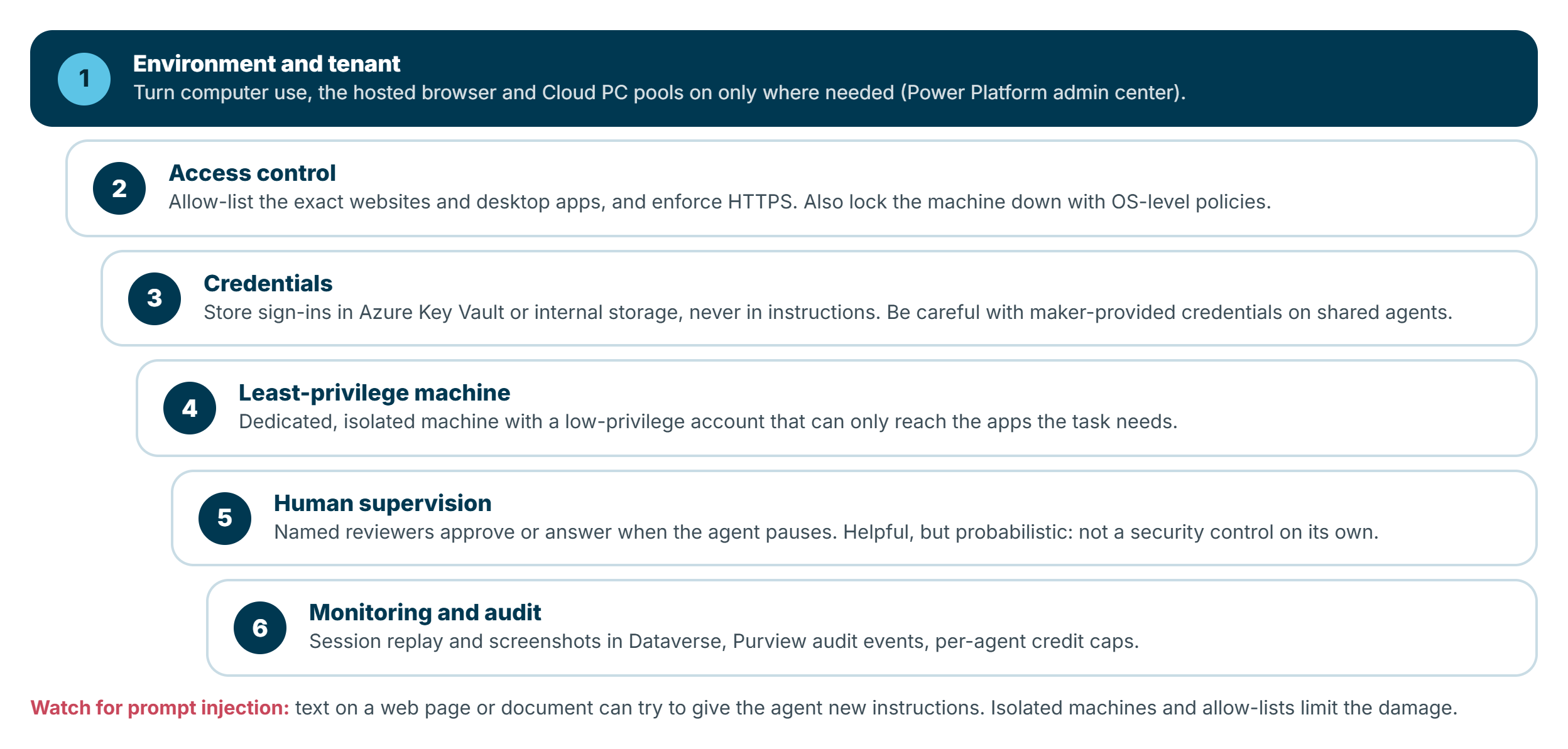
- Environment and tenant switches. Enable computer use, the hosted browser and Cloud PC pools only in the environments that need them.
- Access control. Allow-list exact sites and apps and enforce HTTPS. Note that the allow-list stops the model acting on unlisted sites, but doesn't stop them opening, so also restrict the machine at OS level (for example with Edge policies through Intune).
- Credentials. Key Vault or internal storage, never instructions. Use separate, low-privilege service accounts for the apps the agent signs in to.
- Least-privilege, isolated machines. A dedicated machine that can only reach what the task needs.
- Human supervision. Reviewers get an e-mail when the agent pauses, and can answer from the e-mail or the activity map. It's useful, but Microsoft is clear that it's probabilistic, not a security control on its own. Also note that turning supervision off doesn't make the agent "more autonomous": if it needs help and nobody is assigned, the run simply fails.
- Monitoring and audit. Advanced logs in Dataverse (on by default) include session replay, screenshots, the sites and apps accessed and which credentials were used. You can also send audit events to Microsoft Purview, and set log retention.
Prompt injection
The risk specific to computer use is prompt injection from the screen. The model reads everything visible, so text on a web page or in a document ("ignore your instructions and…") can try to steer it. Microsoft's guidance is to run computer use in trusted, isolated environments and validate before executing instructions. In practice: allow-lists, isolated machines, least-privilege accounts and not pointing an agent with sensitive access at untrusted content.
Limitations to plan around
- Speed and reliability. It's slower than RPA, can repeat actions or get stuck, and struggles more with dropdowns, date pickers and custom widgets. Not for high-volume or time-critical work.
- Not for high-risk decisions. Microsoft explicitly advises against using it for things like hiring, financial transactions or healthcare decisions.
- Machine constraints. Windows only, no multi-screen desktops, no hosted machine groups, and MFA on the machine sign-in blocks runs.
- Some apps resist. Stored password entry works on websites and most Windows UI frameworks, but may not work with Electron, Java, Citrix and other virtualised apps.
- Preview components. The hosted browser and Cloud PC pools were still in preview at the time of writing.
Summary
Computer use fills the gap that APIs and RPA have always left: systems with no API whose screens won't sit still long enough for selectors. To use it well:
- Start with the right question. API first, desktop flow for stable high-volume work, computer use for changing UIs and judgement calls.
- Write specific, numbered instructions with full URLs, the final action and what to do on errors.
- Pick the machine deliberately. Use the hosted browser to learn, and your own machines or Cloud PC pools for real work.
- Budget per step, remember M365 Copilot licences don't cover it, and cap each agent's monthly credits.
- Lock it down with allow-lists, Key Vault credentials, isolated least-privilege machines, human supervision and audit logs.
If you're already running desktop flows, you don't have to choose one or the other. Computer use is another tool in the same toolbox. For the bigger picture of getting an agent safely into production, see End-to-End: From Copilot Studio Agent to Production, and for how Microsoft's and UiPath's agentic offerings compare, see my updated comparison between UiPath and Power Automate.
Features, models and prices change quickly. Details in this post reflect Microsoft's documentation as at October 2026.