Creating a Full Outer Join Between Collections in Canvas App

To join or not to join! Let’s delve deep into the realm of data manipulation by introducing the concept of a “full join” and how to implement it between two collections in Power Apps. If you come from a database background, the term ‘full join’ might be familiar. For those who aren’t in the know, let’s break it down.
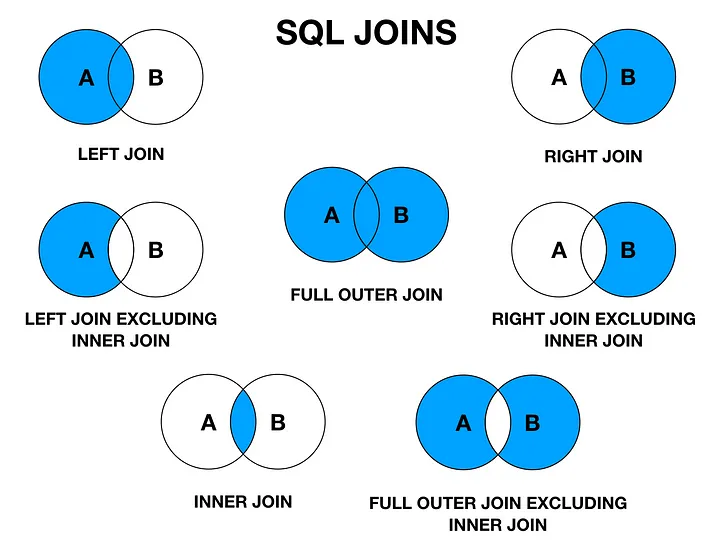
When you have two datasets (collections in Power Apps) that contain data, you may have a scenario where you need to extract data from both sets, depending on the inclusion and exclusion criteria of your scenario. In the image above, the blue represents the data you would like to extract based on the criteria you are using and the nature of the join you are executing.
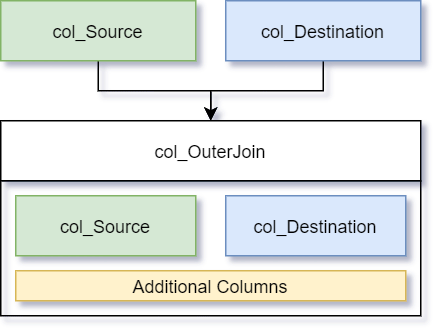
In this context, to join two tables (or collections) in Power Apps to collect all data from both collections, you’d be executing a “full outer join” equivalent query to collect the joining of two collections (col_Source and col_Destination – on the Id column) into one big collection (col_FullOuterJoin) where you can manipulate and update the columns needed in the joined collection (col_FullOuterJoin).
A full outer join needs two parts: every source record (with its matching destination records, if there are any), plus every destination record that has no match in the source. Here’s the code:
// Part 1: every source record, joined to its matching destination record(s)
ClearCollect(col_FullOuterJoin,
    ForAll(

        // Iterate through the source collection, naming each record "src"
        col_Source As src,
        {
            Id: src.Id,

            // Find the corresponding destination record(s) - empty if there's no match
            col_Destination: Filter(col_Destination, Id = src.Id),
            col_Source: src,

            // Columns to appear in dataset
            Code: src.Code,
            Name: src.Name,

            // Conditioned Columns - Use logic from one collection to set the value
            Status: If(
                    src.RiskScore <= 100, "Low",
                    src.RiskScore < 150, "Medium",
                    "High")
        }
    )
);

// Part 2: destination records that have no matching source record
Collect(col_FullOuterJoin,
    ForAll(
        Filter(col_Destination, Not(Id in col_Source.Id)) As dest,
        {
            Id: dest.Id,
            col_Destination: Table(dest),
            col_Source: Blank(),
            Code: dest.Code,
            Name: dest.Name,

            // No source record, so there's no risk score to base the status on
            Status: Blank()
        }
    )
);
Naming the record in each ForAll with As (src and dest) matters. Inside Filter, ThisRecord and unqualified column names refer to the record being filtered, so Filter(col_Destination, Id = ThisRecord.Id) would compare each destination record to itself and match everything. src.Id makes it clear that we mean the source record’s Id.
The join above should result in the following:
Things to Keep in Mind
Power Apps doesn’t have a built-in join function, so the join is built up from ForAll and Filter. A few things are worth looking out for when you adapt it:
- Joining on more than one column. Because the outer record is named, it’s easy to add more join conditions:
Filter(col_Destination, Id = src.Id && Department = src.Department)
- Use ClearCollect for the first part.
Collectappends to the existing collection, so if the first part usedCollect, running the join a second time (e.g. from a refresh button) would duplicate records.ClearCollectresets the collection first, and the second part then appends the unmatched destination records. - Check your join keys. Missing matches are usually caused by data type mismatches (e.g. a number in one collection and text in the other), and unexpected duplicates are usually caused by join keys that aren’t unique.
- Handle blanks. Where a source record has no matching destination record, the nested destination table will be empty, so cater for that with
IsEmptyorIsBlankbefore reading values from it. The same applies tocol_Sourceon destination-only rows. - Watch the size of your collections. Joins happen in memory on the device, so they can get slow with large collections. Filter the data down as much as possible before collecting it.
Does this work for you? Let me know at jacqui.jm77@gmail.com!