Power Automate Desktop in 2026: The Gaps That Finally Closed

In 2021 I wrote a comparison between UiPath and Power Automate, and Power Automate Desktop (PAD) didn't come out of it well. It had no scoped variables, no versioning, no unit testing, weak configuration management, browser automation that relied on extensions, and debugging that made seasoned RPA developers sigh. I recently updated that comparison for 2026, and it became clear PAD deserved its own post: almost every gap on my 2021 list has closed.
This post goes through each one: what changed, when, and how it actually works in the designer. Then it covers the gaps that remain, because there are still a few. Here's where each of the weaknesses I listed in 2021 stands in October 2026:
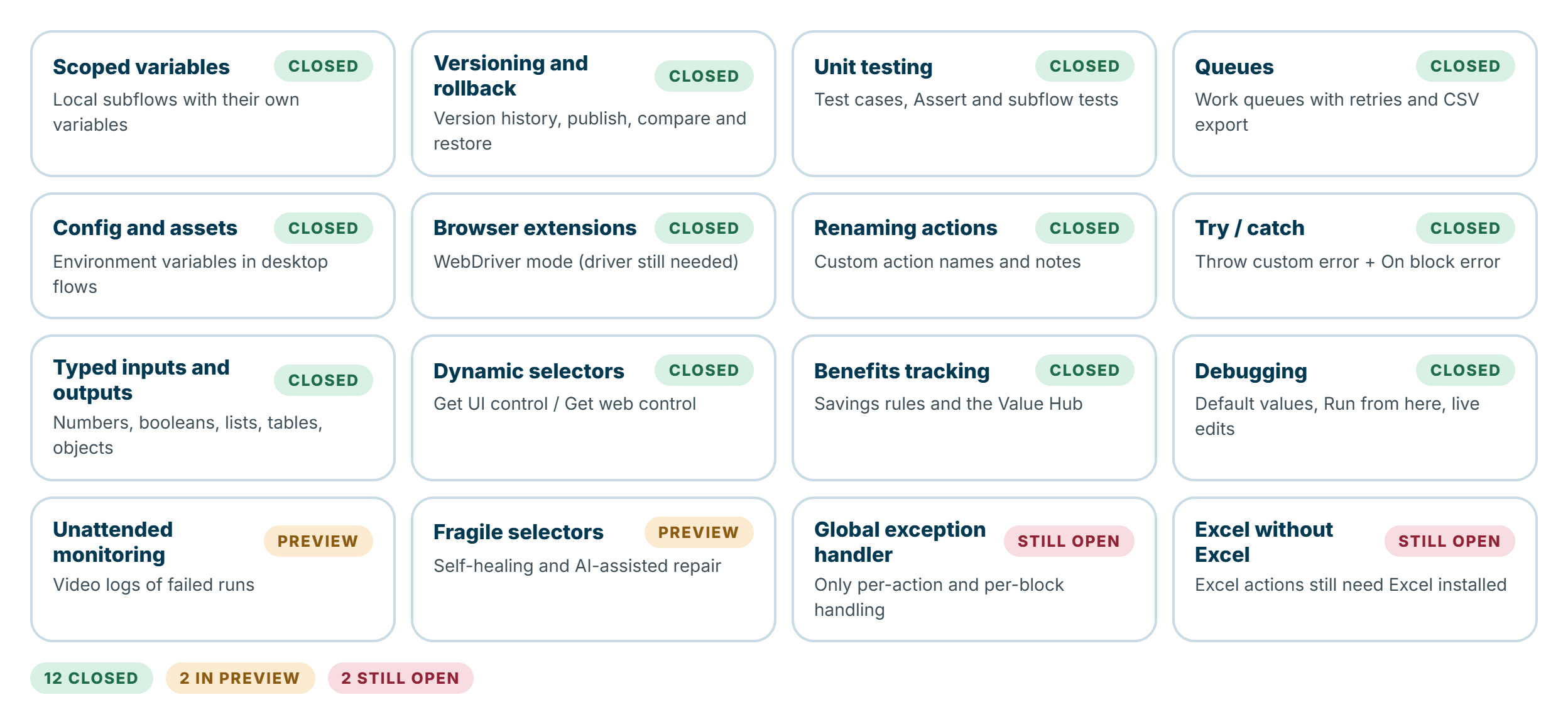
Most of these changes landed between November 2025 and October 2026, a remarkable year for the product.
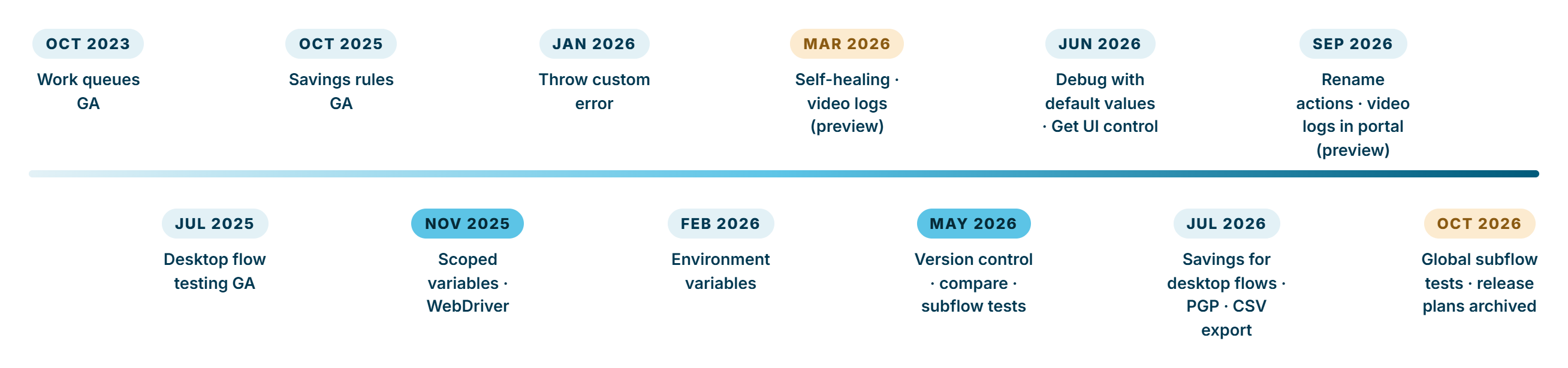
A note on roadmaps: in October 2026 Microsoft archived the Power Platform release plans and moved roadmap updates to the AI at Work roadmap (aka.ms/AIatWorkRoadmap), with items marked In Development, Rolling Out or Launched. If you're used to checking the wave release plans, that's where to look now. The monthly PAD release notes on Microsoft Learn remain the best record of what has actually shipped.
1. Scoped variables: local subflows
2021: every variable was global. In a large flow, any subflow could overwrite any variable, which made reusable components risky.
2026: generally available since November 2025. When you create a subflow, you mark it global or local. Variables inside a local subflow are invisible outside it, and local subflows have their own input and output variables, so they behave like proper functions:
- The Run subflow action shows the subflow's inputs as argument fields and returns its outputs.
- The variables pane shows which variables are local and which are global, and has filters for both.
- Inside a local subflow, you write to a global variable explicitly with the
global.prefix. - Go to subflow on the Run subflow action jumps straight to the subflow.
This is the change I'd point to first if someone says PAD isn't suitable for structured development. Local subflows with inputs and outputs are the building block for reusable, testable components.
2. Versioning and rollback: version control for desktop flows
2021: no version history. If a change broke a flow, you rebuilt it from memory or an export.
2026: version control reached general availability in spring 2026 (May 2026 per the release plan), with Compare versions following in May.
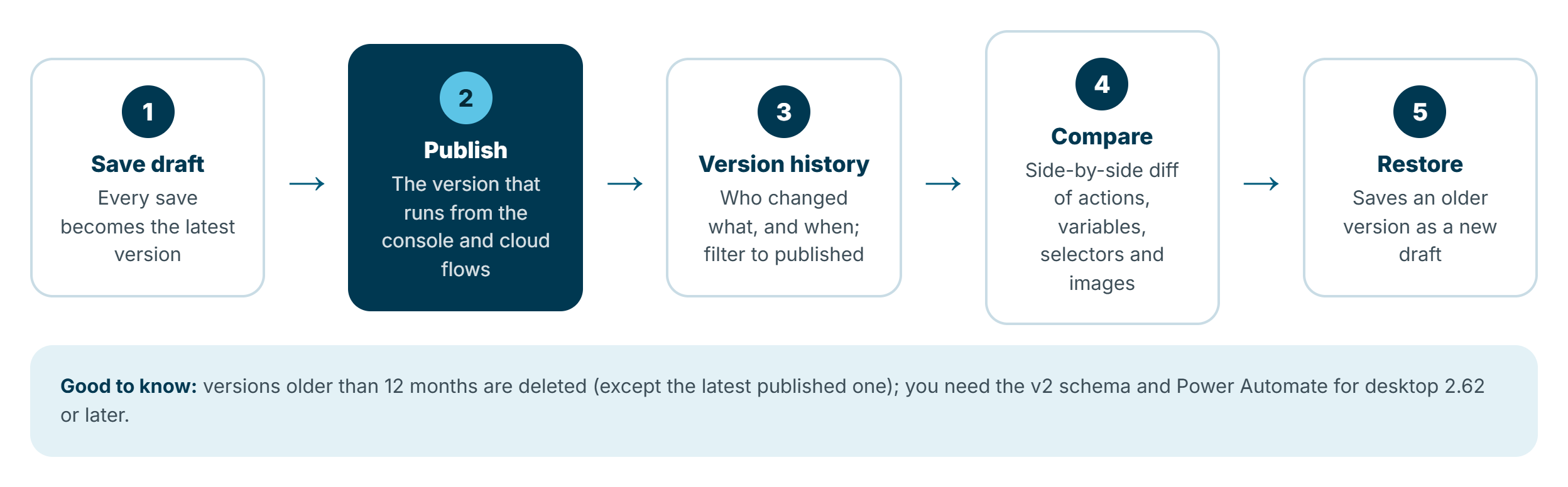
How it works:
- An admin turns it on per environment: Power Platform admin center > Manage > Environments > Settings > Product > Features > Desktop flow version control. Once enabled for an environment, it can't be turned off, so plan the rollout.
- In the designer, Save draft creates a new latest version, and Publish marks the version that runs from the console and from cloud flows. Drafts no longer affect production runs, which is a big deal on its own.
- The Version history pane shows who changed what and when, and can filter to published versions only.
- From a version's menu: View (read-only), Compare this version, and Restore (saves the old version as a new draft, so you never lose the history).
- Compare opens a side-by-side diff showing added, removed and edited actions, plus changes to subflows, variables, UI elements (including selector changes) and images, with search and a change-type filter.
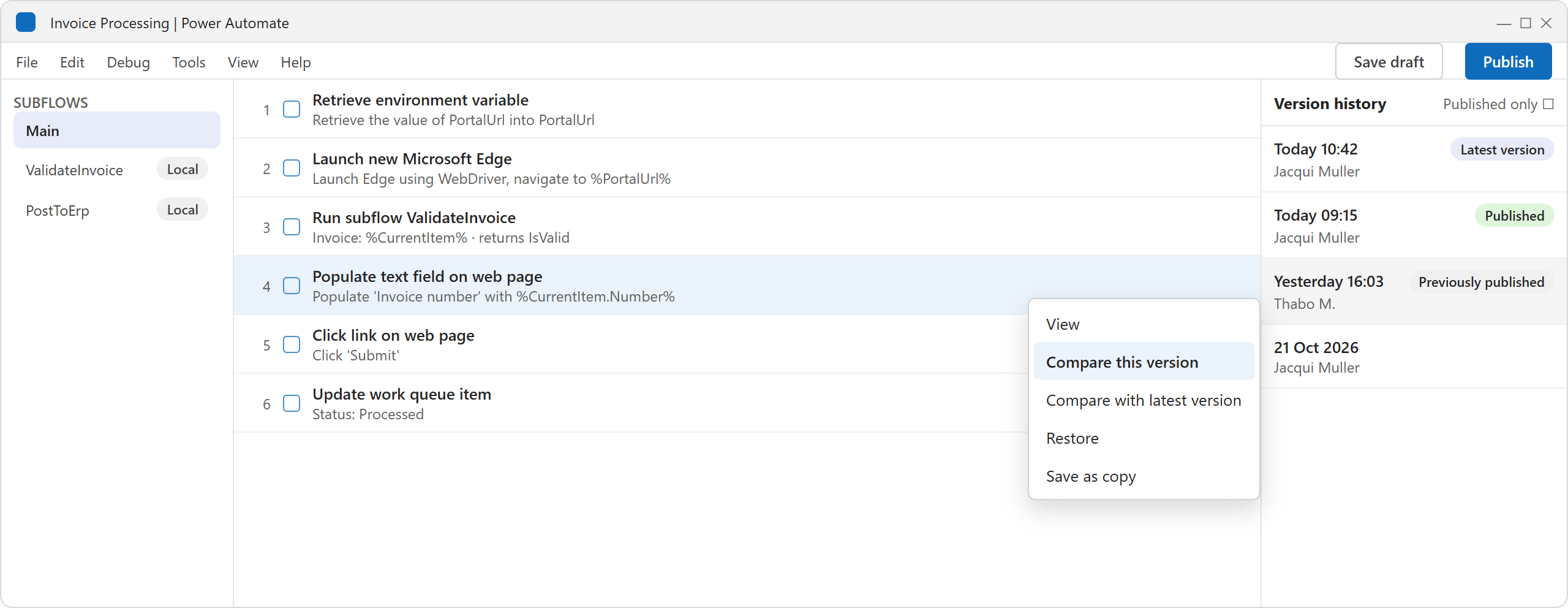
Illustration: the Version history pane in the desktop flow designer, with the version menu open. Your screen may look slightly different.
Requirements: Power Automate for desktop 2.62 or later and the v2 schema. Versions older than 12 months are deleted, except the latest published version, so this is a working history rather than a permanent archive. Keep using solutions and source control for long-term ALM.
3. Unit testing: test cases and subflow tests
2021: no testing framework. "Testing" meant running the flow and watching it.
2026: a desktop flow testing framework went GA in July 2025, and testing subflows with test suites followed in May 2026. Global subflow testing arrived in October 2026.
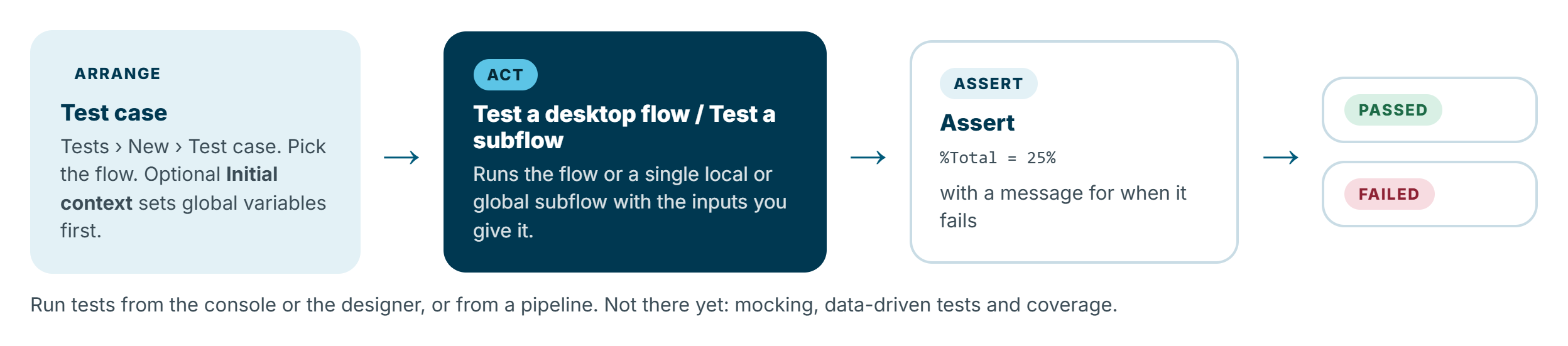
To create a test:
- In the console, open Tests and select + New > Test case.
- Name it, pick the flow under test and select Create.
- From the Testing action group, add Test a desktop flow or Test a subflow of a desktop flow, with the inputs to use.
- Add Assert actions with an expression and a message, for example:
Assert expression:  %InvoiceTotal = 1250.00%
Assert message:     Invoice total should include VAT for the sample invoice
- Run it from the Tests list or the designer. The status shows Passed or Failed.
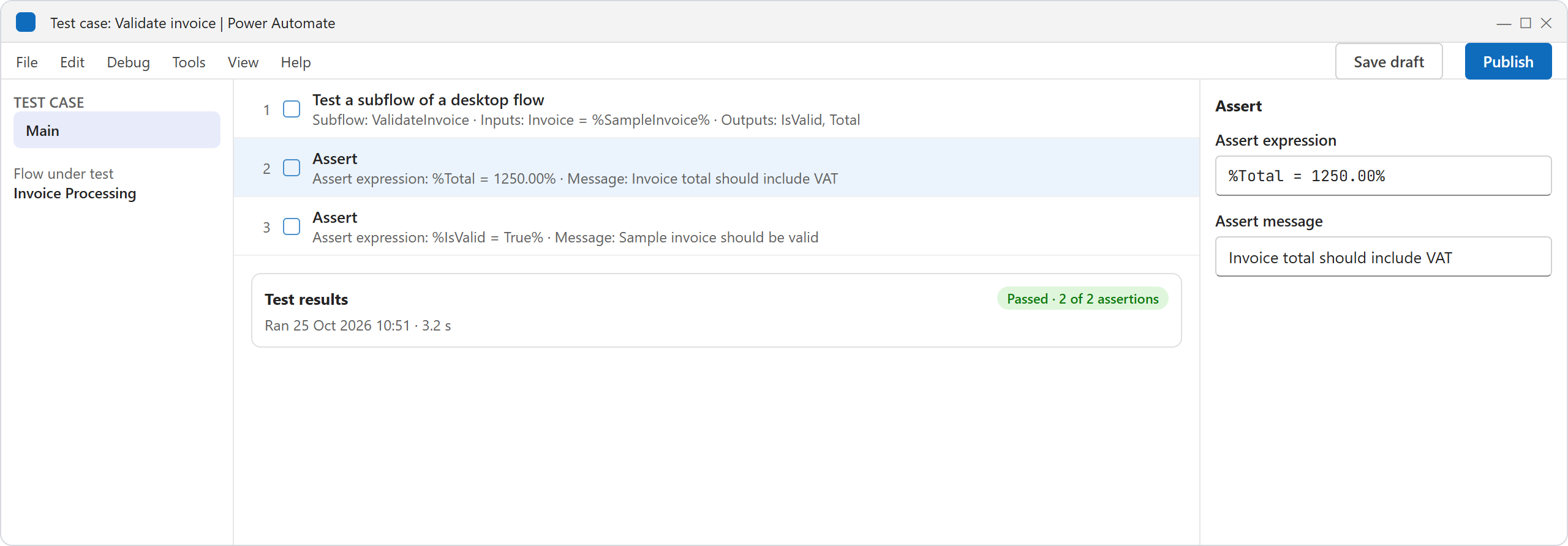
Illustration: a test case that runs a local subflow and checks the results with Assert actions. Your screen may look slightly different.
For global subflows, the Initial context field lets you set global variables before the test runs. Tests can also be run from pipelines and exported and imported with your flows. You need a Premium licence.
Combined with local subflows, this finally makes a test-driven approach realistic in PAD: build small local subflows with clear inputs and outputs, test each one, then compose them.
4. Queues: work queues
2021: no native queues. You built your own with SharePoint lists or SQL tables.
2026: work queues have actually been GA since October 2023, with SLA support added in 2025 and CSV export of queue items in July 2026. If you last looked at PAD before 2024, they're worth a fresh look. You create queues in the Power Automate portal and work with them using a full set of actions:
- Process work queue items loops through items, with an optional filter and a retry override for IT exceptions.
- Add work queue item and Add multiple work queue items load work (with priority, expiry and a unique reference to prevent duplicates).
- Update work queue item marks items as processed or as an exception.
- Requeue item with delay and Update work queue item processing notes handle retries and audit notes.
Status reasons include business and IT exceptions, dead-lettering and processing timeouts, the vocabulary any UiPath developer will recognise from Orchestrator queues.
5. Configuration and assets: environment variables
2021: configuration meant hard-coding, config files on the machine, or passing everything in from a cloud flow.
2026: the Retrieve environment variable action (GA February 2026) reads Power Platform environment variables directly in a desktop flow. The value resolves at runtime for the environment the flow runs in, so the same solution moves cleanly from dev to test to production, including managed environments. October 2026 added Retrieve environment variables to read several at once.
For credentials, keep using Get credential with secure stores (Azure Key Vault or CyberArk via credential connections), which now also supports user-mapped credentials.
6. Browser automation without extensions: WebDriver
2021: web automation required a browser extension installed and allowed on every machine, a constant source of "it works on my machine" problems.
2026: each Launch browser action now has a Browser interaction method setting: Browser extension (the default) or WebDriver (GA November 2025).
A word of caution: "without extensions" doesn't mean zero setup. You need to download the matching x64 WebDriver for your browser (msedgedriver, chromedriver or geckodriver), keep its version in step with the browser, and place it unrenamed in %LocalAppData%\Microsoft\Power Automate Desktop\WebDrivers. WebDriver mode also only attaches to browsers the flow launched itself. It's a genuine improvement for locked-down machines, but it moves the maintenance from extensions to drivers rather than removing it.
7. Renaming actions and adding notes
2021: you couldn't rename actions, so long flows were a wall of "Click UI element in window".
2026: since September 2026 you can give any action a custom name (right-click, F2, or edit the title in the action editor), and the name appears in run logs. You can also add a note to any action. It's a small feature with a big effect on readability, and it makes run logs far more useful when something fails at 3am.
8. Error handling: try/catch, the PAD way
2021: error handling was per action, with no clean way to raise your own business exceptions.
2026: the pieces now add up to a proper try/catch pattern. When an action fails, PAD works through its options in order: the retry policy, then self-healing (if enabled), then your rules, and finally continue or throw.
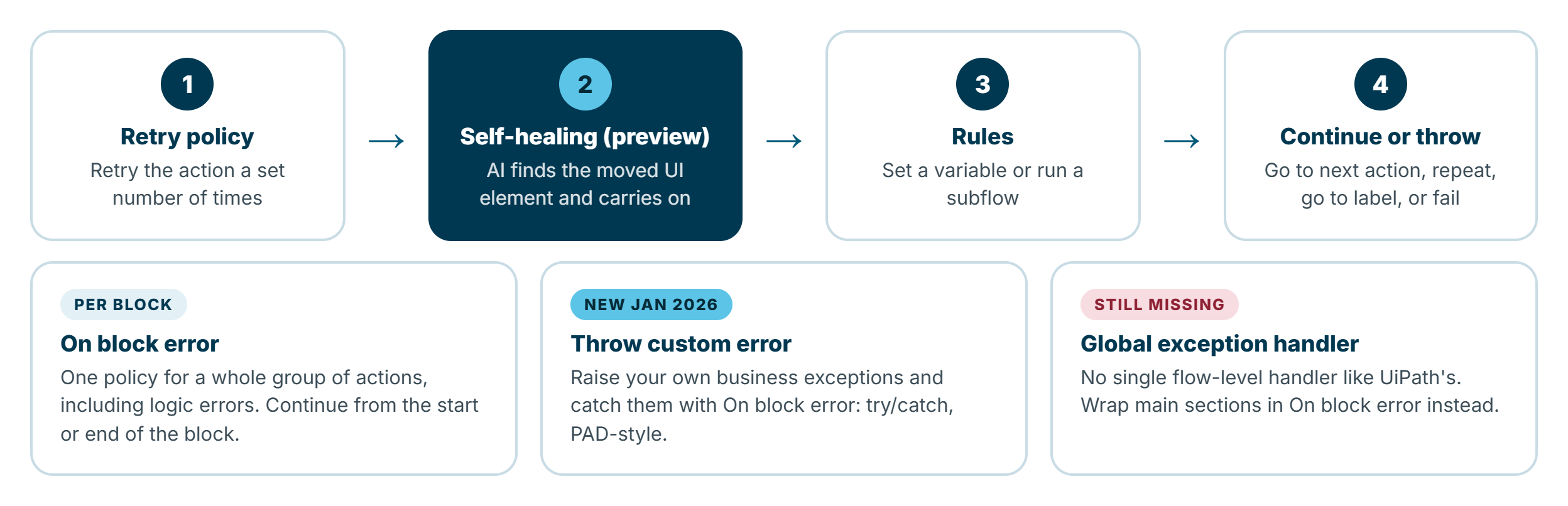
- Per action, the On error settings let you retry, continue (go to next action, repeat or go to a label), set a variable or run a subflow, with advanced rules per error type.
- On block error applies one policy to a group of actions, including logic errors, and can continue from the beginning or end of the block. Think of it as the
try. - Throw custom error (January 2026) raises your own exceptions, for example a business rule violation, which On block error can catch. That's your
throw. - Get last error gives you the details in the handler.
A pattern I'd recommend: wrap each major stage of a flow (initialise, get transaction, process, close) in its own On block error, throw custom errors for business exceptions, and route IT exceptions to a retry or requeue. It's essentially the REFramework mindset, expressed in PAD's building blocks.
9. Typed inputs and outputs
2021: flow inputs and outputs were effectively text.
2026: inputs and outputs support text, numbers, booleans, custom objects, lists and data tables, among others. Combined with local subflow arguments, you can now pass structured data around a flow and between cloud and desktop flows without converting everything to strings and back.
10. Dynamic selectors
2021: selectors were captured, then hard to make dynamic.
2026: you can still use variables in selectors, but June 2026 added Get UI control and Get web control, which build UI element variables at runtime, so one action can target different elements depending on your data. Selector building has also improved, with more attributes to choose from.
11. Benefits tracking
2021: no built-in way to show the value of an automation.
2026: savings rules (GA October 2025) let you record the time and money each run or queue item saves, for cloud flows, work queues and, since July 2026, desktop flows. Results roll up in the Power Automate portal and the Value Hub in the Power Platform admin center. For desktop flows you set the manual duration and a cost baseline yourself; it's not automatic, but it's finally native. This is the feature I'd show a CFO.
12. Debugging
2021: you could step through a flow, but setting up test values meant editing the flow.
2026: since June 2026, each variable has a default value used only in debug runs, and you can Run from here with default values (Alt+F5) from any action. You can edit variable values live, with a revert option, see input and output values after a run, and filter the variables pane to overridden values. Co-presence also shows when someone else is editing the same flow.
Still in preview: monitoring and self-healing
Two areas have moved a long way but weren't generally available at the time of writing.
Video logs for unattended runs (preview). PAD can record the last 60 seconds before an unattended run fails, with optional captions from the action log. You switch it on in the cloud flow's Run a flow built with Power Automate for desktop action under Advanced parameters. Since September 2026, videos can be stored in Dataverse and viewed on the run details page (also preview). For anyone who has tried to diagnose an unattended failure from a screenshot and a log line, this is huge.
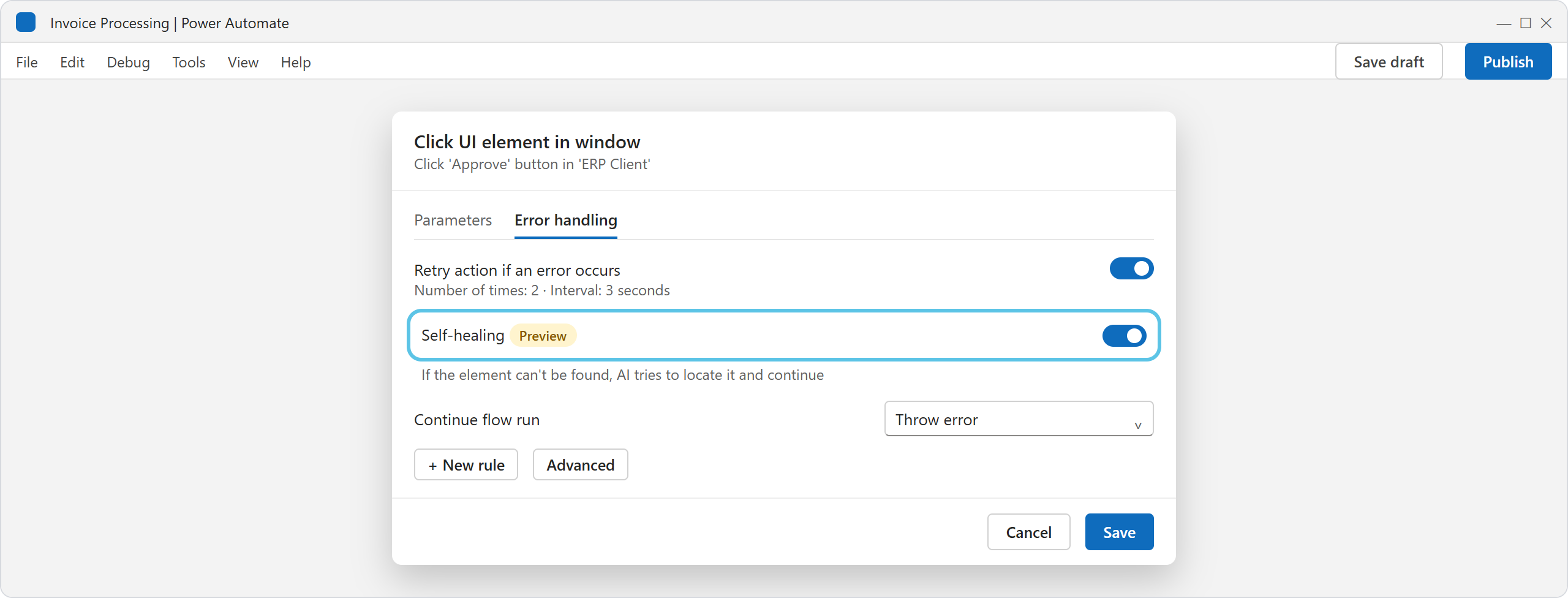
Illustration: the Error handling tab of a UI action, with retry and Self-healing (Preview) switched on. Your screen may look slightly different.
Self-healing and AI-assisted repair (preview). At runtime, self-healing can find a UI or web element that has moved when an action fails with element not found or window not found, and carry on. It's switched on per action under Error handling > Self-healing (Preview), and it runs after your retry policy but before your error rules. At design time, AI-assisted UI automation repair proposes a more resilient selector when one breaks, which you test and accept. Self-healing needs some admin setup first: it uses Anthropic and OpenAI models, so Anthropic must be enabled as a subprocessor and, outside the US, cross-region data movement allowed. It isn't available in government or sovereign clouds.
Also in preview: a flowchart view of desktop flows alongside the classic sequence view, and scheduling desktop flows directly without a cloud flow, which Microsoft's roadmap showed as launching in September–October 2026.
The gaps that remain
PAD has come a long way, but it's not at parity with UiPath for enterprise RPA, and it's worth being clear about where.
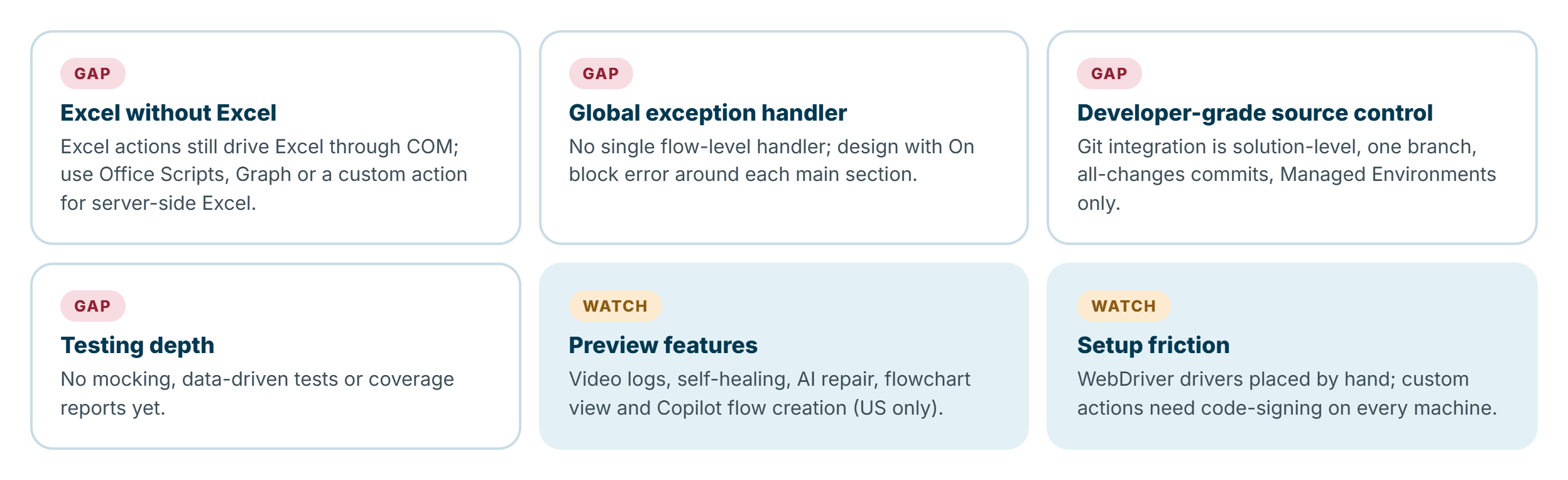
- Excel without Excel installed. PAD's Excel actions still drive Excel through COM, so Excel must be installed on the machine. UiPath's Workbook activities don't need it. Workarounds: Office Scripts or Microsoft Graph from a cloud flow, or a custom action.
- No global exception handler. UiPath has one flow-level handler. In PAD, you design it in with On block error around each section.
- Source control isn't developer-grade. Dataverse Git integration works at solution level, one branch at a time, committing all changes, and needs Managed Environments. It's real ALM progress, but not the branch-per-feature workflow developers expect.
- Testing depth. There's no mocking, data-driven testing or coverage reporting yet.
- Preview features. Video logs, self-healing, AI repair, flowchart view, and Copilot flow creation (which is still US-only) need to reach GA before I'd build production standards around them.
- Setup friction. WebDriver drivers have to be placed and updated by hand, and custom actions need code-signing certificates installed on every authoring and runtime machine.
One licensing note: the new ability to share Process licence capacity across a group of flows applies to cloud flows only.
What this means for your next project
If you dismissed PAD for serious RPA a few years ago, it's time to look again. With local subflows, version control, testing, work queues, environment variables and proper error handling, you can now build desktop flows with the same discipline as UiPath processes: modular, testable, versioned and configurable per environment. The gaps that remain matter most for large, complex, high-volume programmes, which is still where UiPath leads.
My practical advice:
- Turn on version control in your development environments now, and agree a "save draft, test, publish" rhythm with your team.
- Refactor into local subflows with inputs and outputs, and add test cases for the important ones.
- Move configuration into environment variables and credentials into a secure store.
- Adopt a standard error-handling pattern with On block error and Throw custom error.
- Pilot video logs and self-healing in non-production environments, so you're ready when they reach GA.
- Set savings rules on every production flow. The value conversation is much easier when the numbers are already there.
For the wider picture of how Microsoft and UiPath compare in 2026, including agents and licensing, see the updated UiPath vs Power Automate comparison. And for testing cloud flows too, my earlier post on unit testing in Power Automate flows is still relevant.
Features and statuses reflect Microsoft's release notes and documentation as at October 2026.