Bulk Your SharePoint Operations: Bypassing Item Limits and Reducing API Calls in Power Platform

SharePoint lists are still one of the most popular places for business users to "just have the data". The trouble starts when that data has to be refreshed from somewhere else every day, and the somewhere else has a couple of thousand rows in it. Suddenly you're staring down throttling limits, concurrency settings and a flow run history that scrolls for days.
This post is based on a talk I co-presented with Rechard Preston, titled Bulk Your SharePoint Operations – if they can do it, so can you! Rechard also took a deeper dive into the build at Global Power Platform Bootcamp 2025 (GPPB 2025) in his session Bypassing item limits and reducing item calls, so I've pulled the code and flow steps from his deck into this post as well. Full credit to Rechard for the Power Apps formula and the step-by-step batch flow.
So, what's the big idea?
The scenario is a very common one. You have "stuff" sitting in Dataverse, Excel or SQL, and it needs to land in SharePoint. The obvious approaches are:
- Create a Power Automate flow (or Logic App) that deletes and re-inserts all items using the SharePoint connector
- Create a flow that updates each item using the SharePoint connector
- Do either of the above, but call the SharePoint API directly instead of using the connector actions
All of them work… right up until they don't. There are three sets of limits standing in your way:
- Power Platform limits (Rechard's deck calls out the 40K account API call limit)
- Concurrency limits on loops in your flows
- SharePoint API throttling – 600 user requests per minute and 1 000 app requests per minute
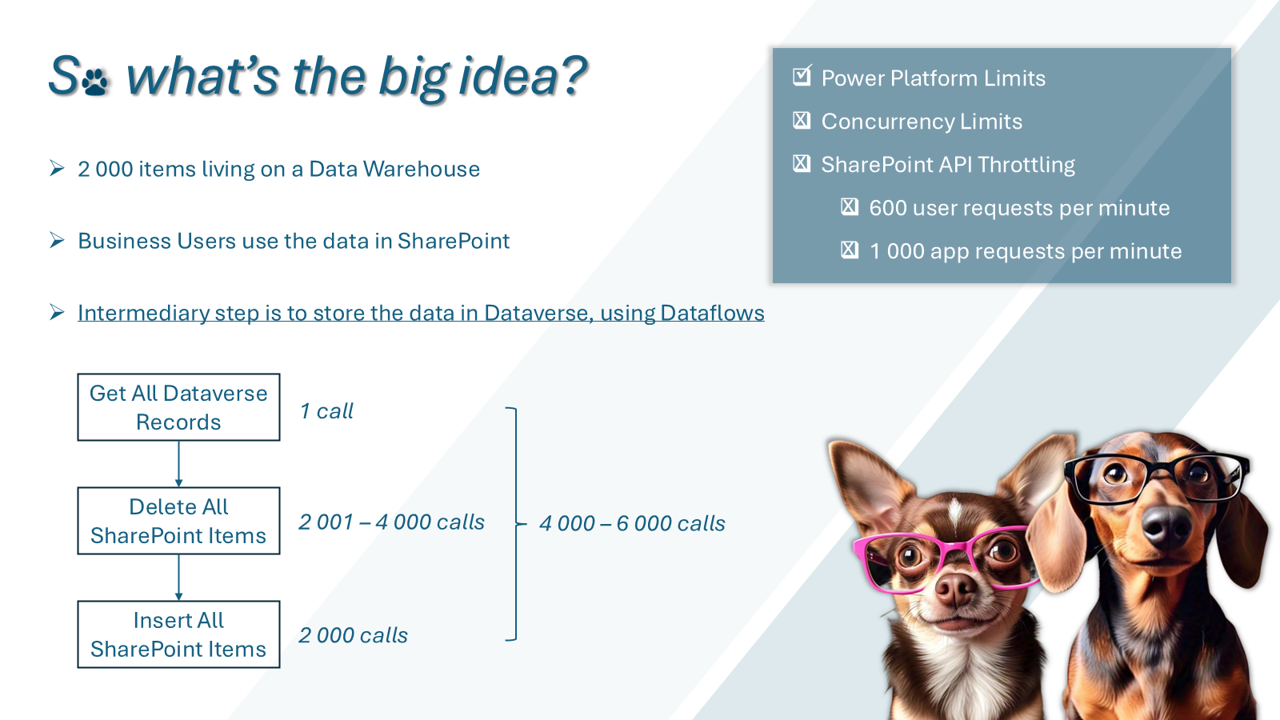
One item, one call: a naive refresh of 2 000 items quickly turns into 4 000 – 6 000 calls.
Here's the real-world example from the talk. There are 2 000 items living in a data warehouse. Business users consume that data in SharePoint, and the intermediary step is to store the data in Dataverse using Dataflows. A daily refresh then looks like this:
- Get all Dataverse records – 1 call
- Delete all SharePoint items – 2 001 to 4 000 calls
- Insert all SharePoint items – 2 000 calls
That's 4 000 – 6 000 calls for a single refresh of a single list. Multiply that by a few lists and you are well into throttling territory, with every limit on the checklist above firmly crossed out.
The answer: batch your SharePoint REST API requests
SharePoint Online (and on-premises SharePoint 2016 and later) supports batching queries and operations against its REST/OData API, as well as the files and folders subset of the Office 365 REST APIs. Instead of sending one HTTP request per item, you bundle a whole set of operations into a single request to the $batch endpoint:
https://fabrikam.sharepoint.com/_api/$batch
One request can carry many changes, so the number of calls drops dramatically, and so does your exposure to throttling.
The architecture of "the flows"
To keep things manageable, we split the work into a parent flow and a set of child flows.
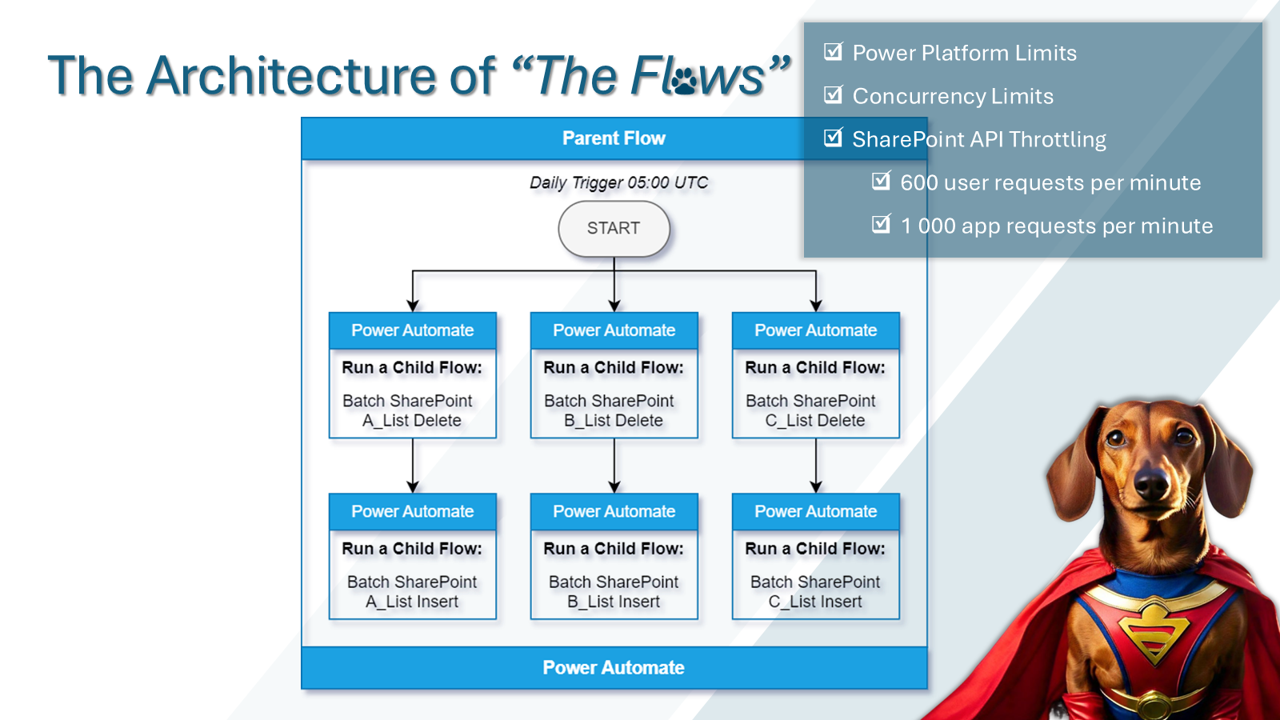
A daily parent flow orchestrates a batch delete and a batch insert child flow per list.
- A parent flow runs on a daily trigger (05:00 UTC)
- For each list (A, B and C in the diagram), it runs a child flow that batch deletes the list items
- It then runs a child flow that batch inserts the fresh items
With that structure in place, all of the limits on the checklist get ticked off: you stay within Power Platform limits, you're not relying on cranking up concurrency, and SharePoint isn't throttling you.
Building the batch insert flow in Power Automate
Rechard's GPPB deck walks through the batch flow step by step. The caveats first, because, as with all things in life, there are some:
- The destination needs to be able to accept batch requests
- Your data needs a numbered column (an auto-number column) so that you can slice it into batches
1. Initialise your variables
The flow starts by initialising a handful of variables: varBaseURL (the SharePoint site), BatchRequestArray (an empty array that collects each request), NewLine (two line breaks, \n twice), ItemCount, and two counters, intI and intJ, which mark the start and end of the current batch.
2. Load and map the data
A Dataverse List rows action pulls the source rows, and a Select action maps each column to its SharePoint destination column.
3. Set the batch boundaries
A second Select pulls out just the auto-number column, defaulting to 1 when it's empty:
if(empty(item()?['cr4ca_autonumbercolumn']),1,int(item()?['cr4ca_autonumbercolumn']))
The counters and total are then set from that selection:
intI:      sub(min(body('Select_AutoNumberColumn')), 1)
intJ:      add(variables('intI'), 50)
ItemCount: max(body('Select_AutoNumberColumn'))
4. Loop through the items in batches
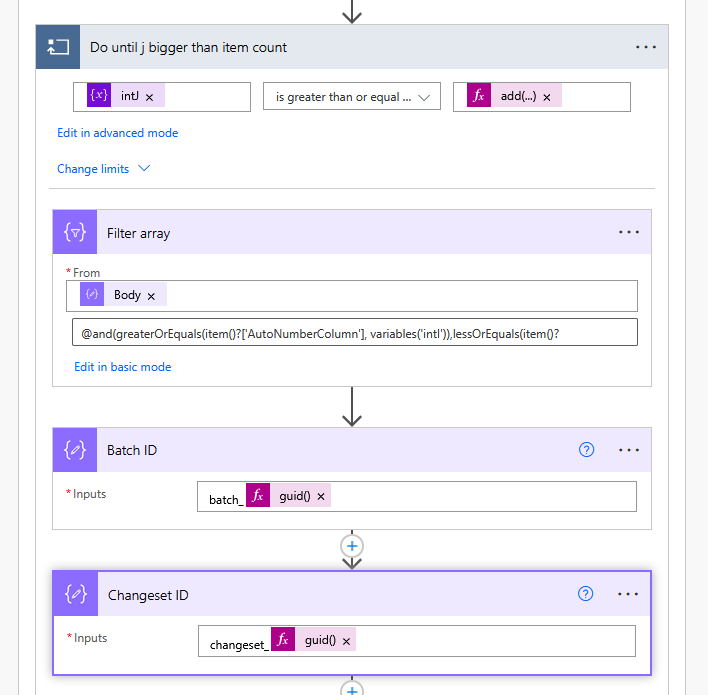
Loop until intJ passes the item count, filter the current slice, and generate fresh batch and changeset IDs.
Do until        @greaterOrEquals(variables('intJ'), add(variables('ItemCount'), 50))
  Filter array  From:  Body (the items returned earlier in the flow)
                Where: @and(greaterOrEquals(item()?['AutoNumberColumn'], variables('intI')),
                            lessOrEquals(item()?['AutoNumberColumn'], variables('intJ')))
  Batch ID      batch_@{guid()}
  Changeset ID  changeset_@{guid()}
A Do until loop runs until intJ is greater than or equal to add(variables('ItemCount'), 50). Inside it, a Filter array keeps only the items whose auto-number falls between intI and intJ, and two Compose actions create unique boundaries with guid(): one prefixed batch_ and one prefixed changeset_.
5. Compose each change request
For every item in the slice, a Compose ChangeSet Request action builds the individual request and appends it to BatchRequestArray. In the deck, the dynamic content looks like this (the field list is trimmed here – take note of the spaces and blank lines, they matter):
--@{outputs('Changeset_ID')}
Content-Type: application/http
Content-Transfer-Encoding:binary

POST @{variables('varBaseURL')}/_api/web/lists/getbytitle('MaterialDataSheetDataNew')/Items HTTP/1.1
Content-Type: application/json;odata=verbose
Accept: application/json;odata=nometadata

{"__metadata": { "type": "SP.Data.MaterialDataSheetDataNewListItem" },"ItemCodeCustomer":"...","ProductDescription":"...", ... }
Once all items are added, a Compose EOA closes off the changeset and the batch (-- + outputs('Changeset_ID') + --, then -- + outputs('Batch_ID') + --) and that is appended to the array too.
6. Send the batch
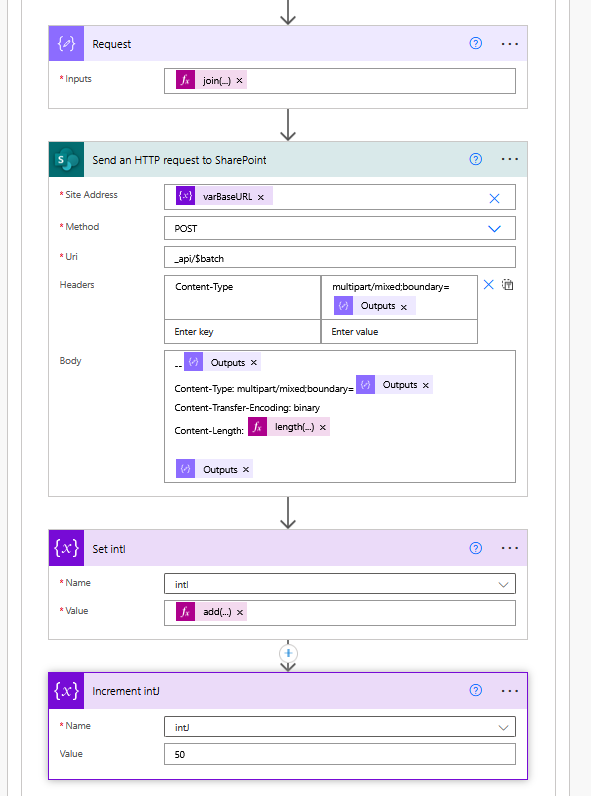
All the requests are joined and sent to the $batch endpoint in a single HTTP call.
Request                         @{join(variables('BatchRequestArray'), variables('NewLine'))}
Send an HTTP request to SharePoint
  Site Address                  @{variables('varBaseURL')}
  Method                        POST
  Uri                           _api/$batch
  Headers  Content-Type         multipart/mixed;boundary=@{outputs('Batch_ID')}
  Body                          (see the request body below)
Set intI                        @{add(variables('intJ'), 1)}
Increment intJ                  50
The array is joined into one string:
join(variables('BatchRequestArray'), variables('NewLine'))
A single Send an HTTP request to SharePoint action then posts it to _api/$batch, with the header Content-Type: multipart/mixed;boundary= followed by the batch ID, and this body:
--@{outputs('Batch_ID')}
Content-Type: multipart/mixed;boundary=@{outputs('Changeset_ID')}
Content-Transfer-Encoding: binary
Content-Length: @{length(outputs('Requests'))}

@{outputs('Requests')}
7. Move to the next batch
Finally, intI is set to add(variables('intJ'), 1) and intJ is incremented by 50, and the loop goes round again.
Bonus: getting past the 2 000 item delegation limit in Power Apps
The same "work in chunks" idea helps on the canvas app side. Power Apps can only retrieve 2 000 records per query from a SharePoint list or Dataverse table. Rechard's formula loads everything in batches of 2 000 using the numbered column:
Clear(col_LookupMDSData);
ForAll(
    Sequence(RoundUp(First(Sort(MaterialDataSheetDataNew, IndexID, SortOrder.Descending)).IndexID / 2000, 0), 1, 1),
    With(
        {
            _FirstID: (ThisRecord.Value - 1) * 2000,
            _LastID: ThisRecord.Value * 2000
        },
        Collect(col_LookupMDSData, Filter(MaterialDataSheetDataNew, IndexID > _FirstID && IndexID <= _LastID))
    )
);
Step by step, it:
- Sorts the data descending and grabs the highest
IndexID - Divides by 2 000 and rounds up to get the number of batches
- Generates a sequence of batch numbers with
Sequence() - Iterates through the batches with
ForAll() - Works out the first and last ID for each batch (batch 1: 0–2 000, batch 2: 2 000–4 000, and so on)
- Filters the data for that range
- Collects the filtered rows into one collection
The benefits are performance (Power Apps handles the data in manageable chunks), getting around the delegation limit, and avoiding an app that freezes while it tries to swallow a massive collection in one go.
Wrapping up
When one-item-one-call starts hurting, stop sending items one at a time. Batch your SharePoint REST requests through $batch, structure your flows so each list gets its own delete and insert child flow, and make sure your data has a numbered column to slice on. If they can do it, so can you!
A big thank you to Rechard Preston for co-presenting this one and for sharing the detailed build from his GPPB 2025 session.