Getting Unique Records or Items from an Excel Table

In today’s fast-paced world, managing data is important, and Excel is a common tool for organising and analysing information. Still, working with large datasets can be tough when duplicates arise. When handling a contact list, it is crucial to have unique entries. It is also important for tracking sales or analysing project results. A clean dataset helps in making good decisions.
This is where Power Automate steps in to make your life easier. With its automation capabilities, you can quickly extract unique records from an Excel table. This saves time and eliminates the need for tedious manual effort. In this post, we’ll demonstrate how to utilise Power Automate. This will simplify the process and help you work smarter. It allows you to focus on what really matters. Let’s get started!
Setting the Scene
Let’s say we have a spreadsheet that contains multiple records detailing the participants of a hackathon. The hackathon submissions can be submitted and presented as groups that contain multiple team members. Each team member is recorded in the spreadsheet. An automated solution is needed to notify each team of their acceptance with each member cc’ed in a mail sent to each team. The challenge is that the data requires some manipulation for the automation to be functional. What now?
Create an Excel Spreadsheet with a Table & Data in it
Create an Excel workbook. Insert a table and add columns with corresponding data to the table:
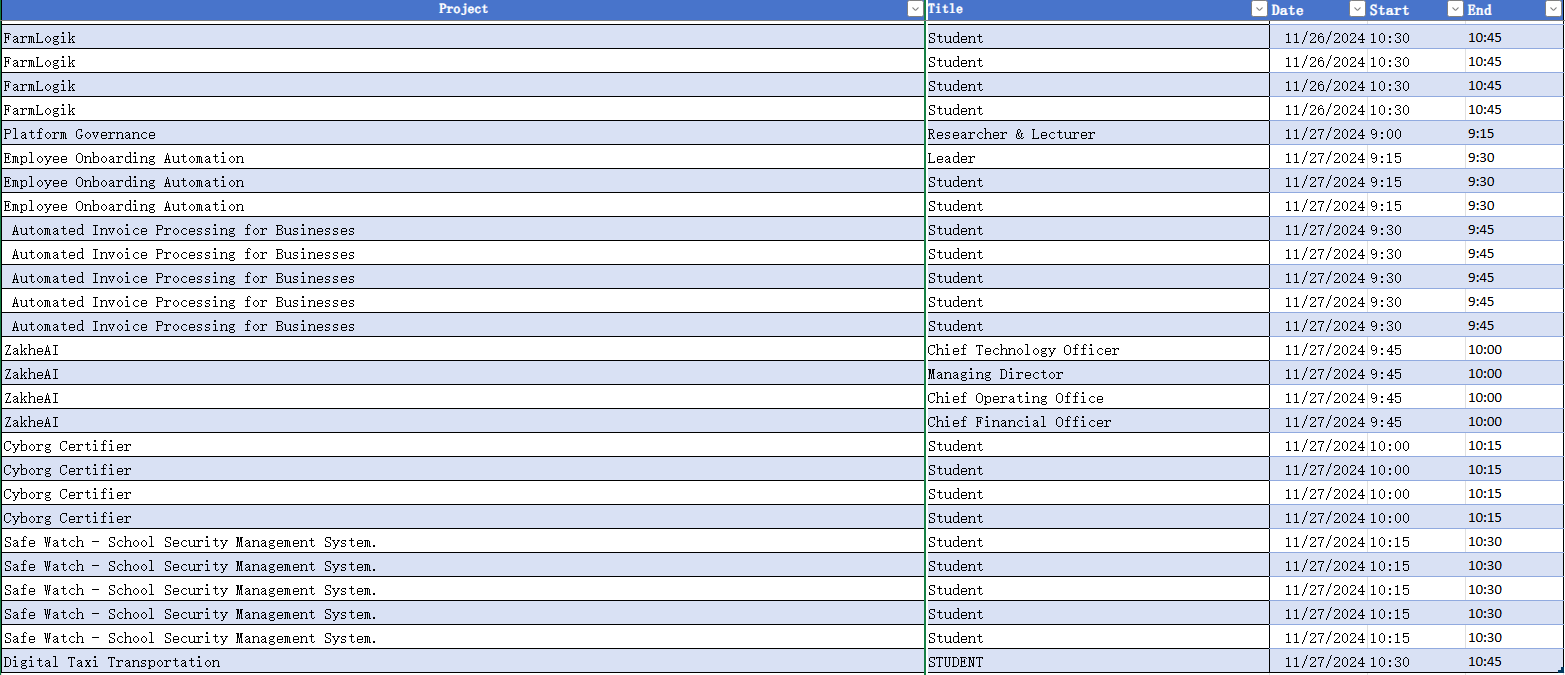
Ensure the Excel spreadsheet is accessible from the cloud. Add it to SharePoint or OneDrive.
Build a Power Automate Flow
Let’s develop a Power Automate flow that will read the Excel spreadsheet and find a list of distinct projects from the Excel spreadsheet:
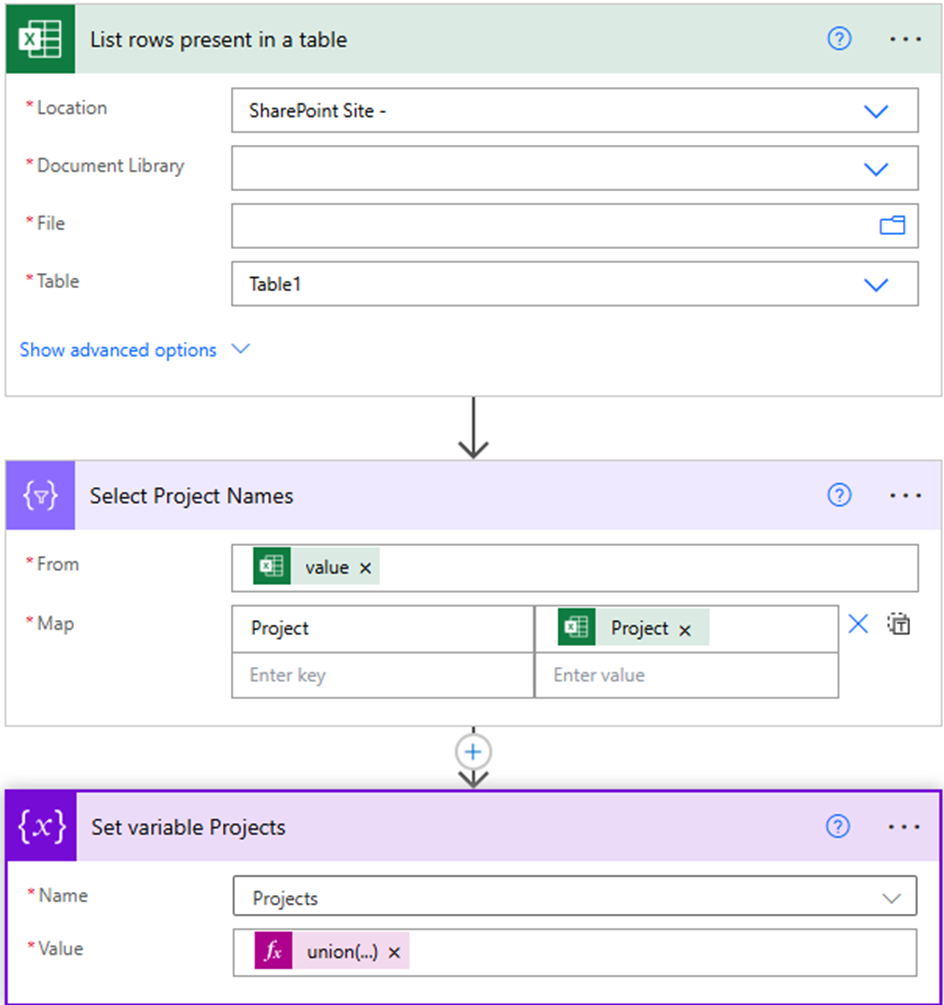
Start by listing all rows present in the table. Then select only the Projects column (or the column which you would like to get the distinct values of). Then set the array variable to the following:
union(body('Select_Project_Names'), body('Select_Project_Names'))
For each project, you can now filter the results from the Excel and compile the list of email addresses to be cc’ed on the mail.

Tips and Troubleshooting
- Uniqueness across more than one column: if a record is only a duplicate when a combination of columns match, build a key in the Select action by concatenating those columns, e.g.
concat(item()?['Project'], '_', item()?['Email']), and run the union over that instead. - Some duplicates remain:
union()compares values exactly, so “Project A”, “project a” and “Project A ” (with a trailing space) are treated as three different values. Clean the values in the Select action withtoLower()andtrim()if your data isn’t consistently captured. - Not all rows are returned: the “List rows present in a table” action only returns the first 256 rows by default. For larger tables, turn on Pagination in the action’s settings and set a threshold that covers your data.
- Blank rows: empty cells will show up as an empty value in the distinct list, so filter them out before looping through the projects.
In Conclusion
The above “should” work. It worked for me. If it doesn’t work for you, Microsoft definitely broke something and hopefully Copilot can help figure it out. I wanted to filter the array (Excel results), it showed me all of the fingers, so I had to “requery” the Excel – Copilot wasn’t smart enough to get around that but hopefully you’ll have better luck!