Creating a UiPath Data Services Entity Record From UiPath Studio

I recently started playing with integrating UiPath Apps, UiPath Data Services and UiPath Storage Buckets into my automations. It has been a tremendous amount of fun to see it all come together and how it all gels together. I had a few challenges creating records in UiPath Data Services Entities from UiPath but I managed to figure it out and it turns out to be quite simple.
Enabling UiPath Data Services
If you cannot see the Data Services icon on the navigation menu located on the left hand side of the screen, ensure that Data Services is enabled on your tenant by directing to Admin, expanding your tenant and selecting Data Services.
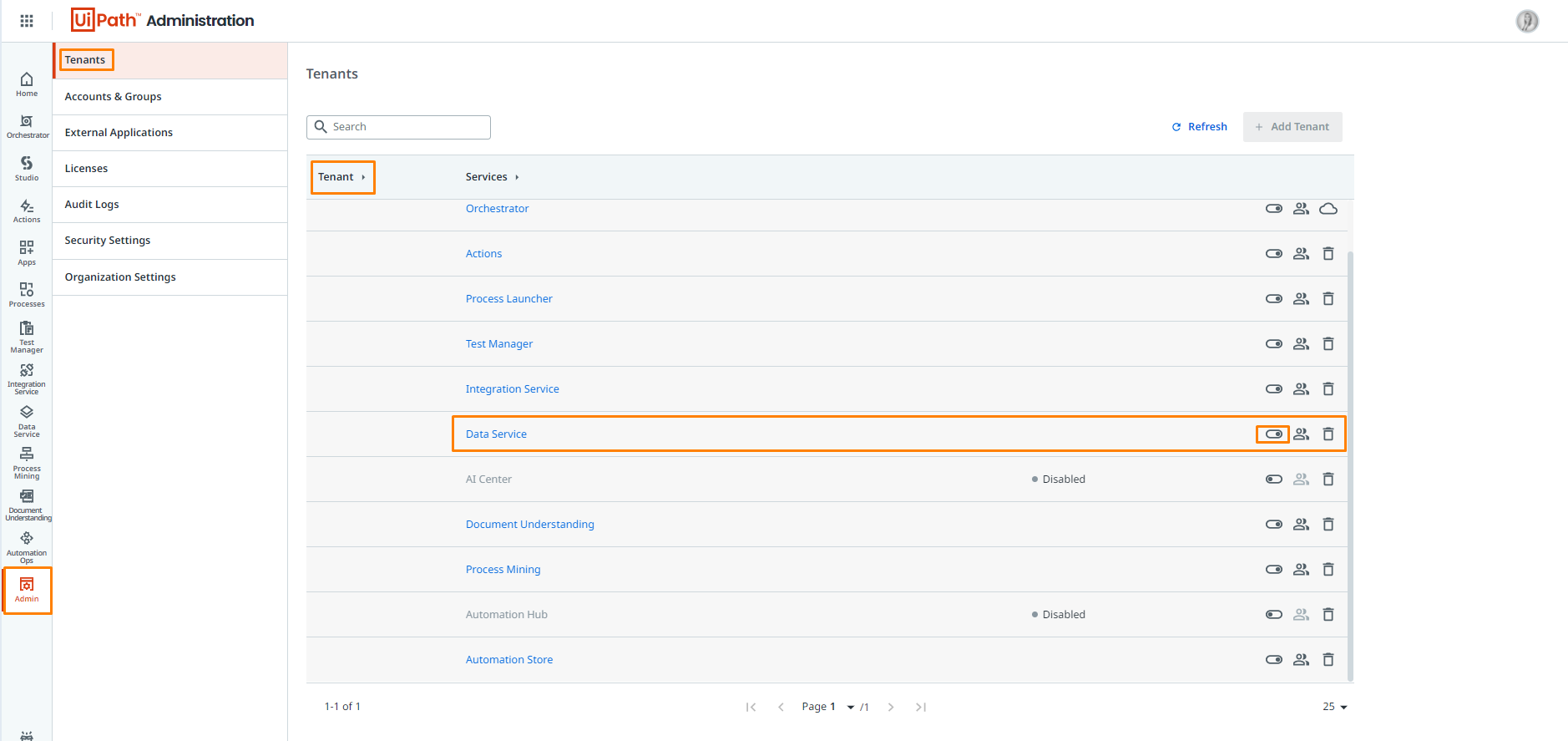
Create the Entity in UiPath Data Services
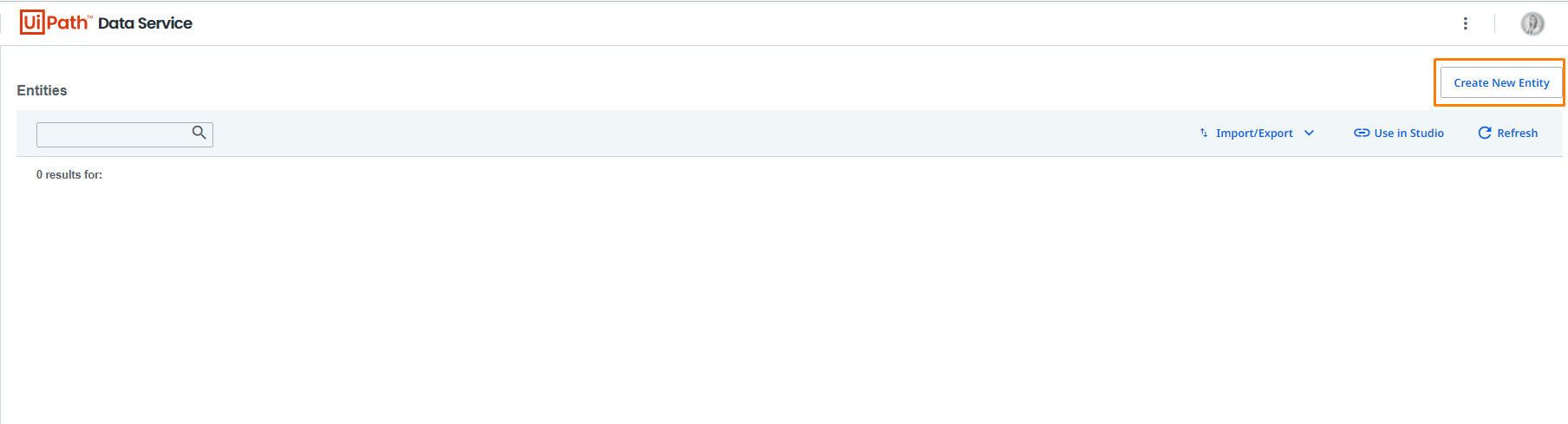
Navigate to the UiPath Data Services through the UiPath Automation Cloud and Create New Entity:
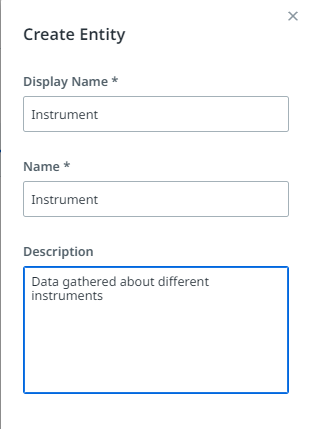
Complete the relevant fields before clicking Save at the bottom right hand side of the page:
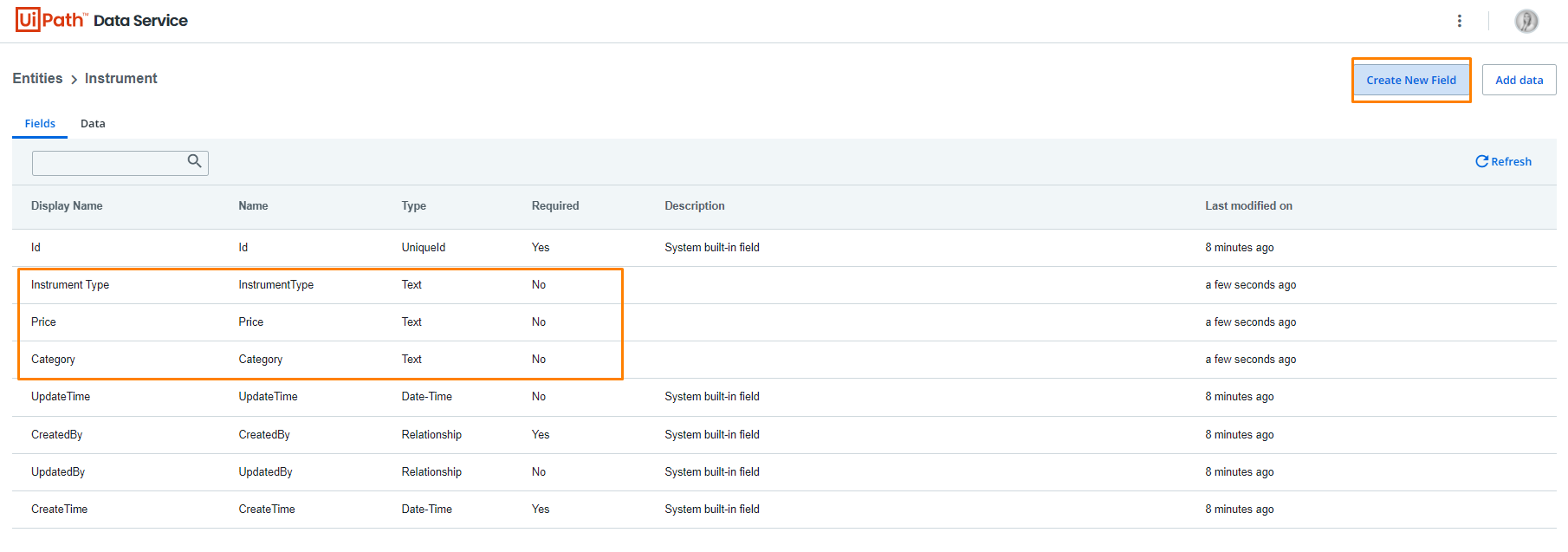
Click on the entity and add the appropriate fields:
Now navigate to UiPath Studio to connect the data services and start populating the entity.
Populating the Entity From UiPath Studio
First thing’s first… Install the Data Services library by clicking on Manage Packages in the taskbar. Search for the library, install and save.
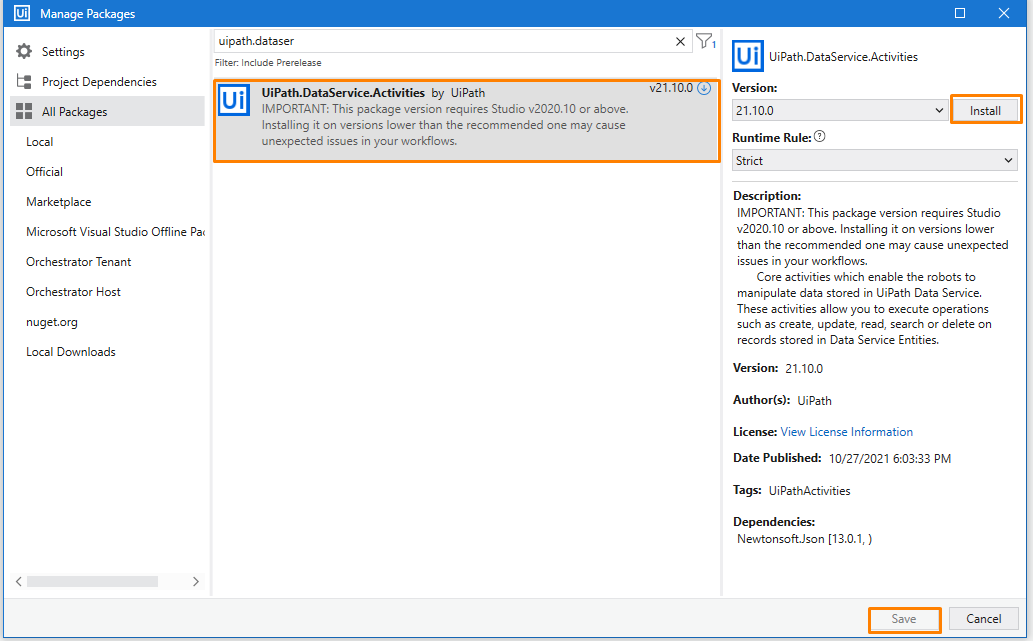
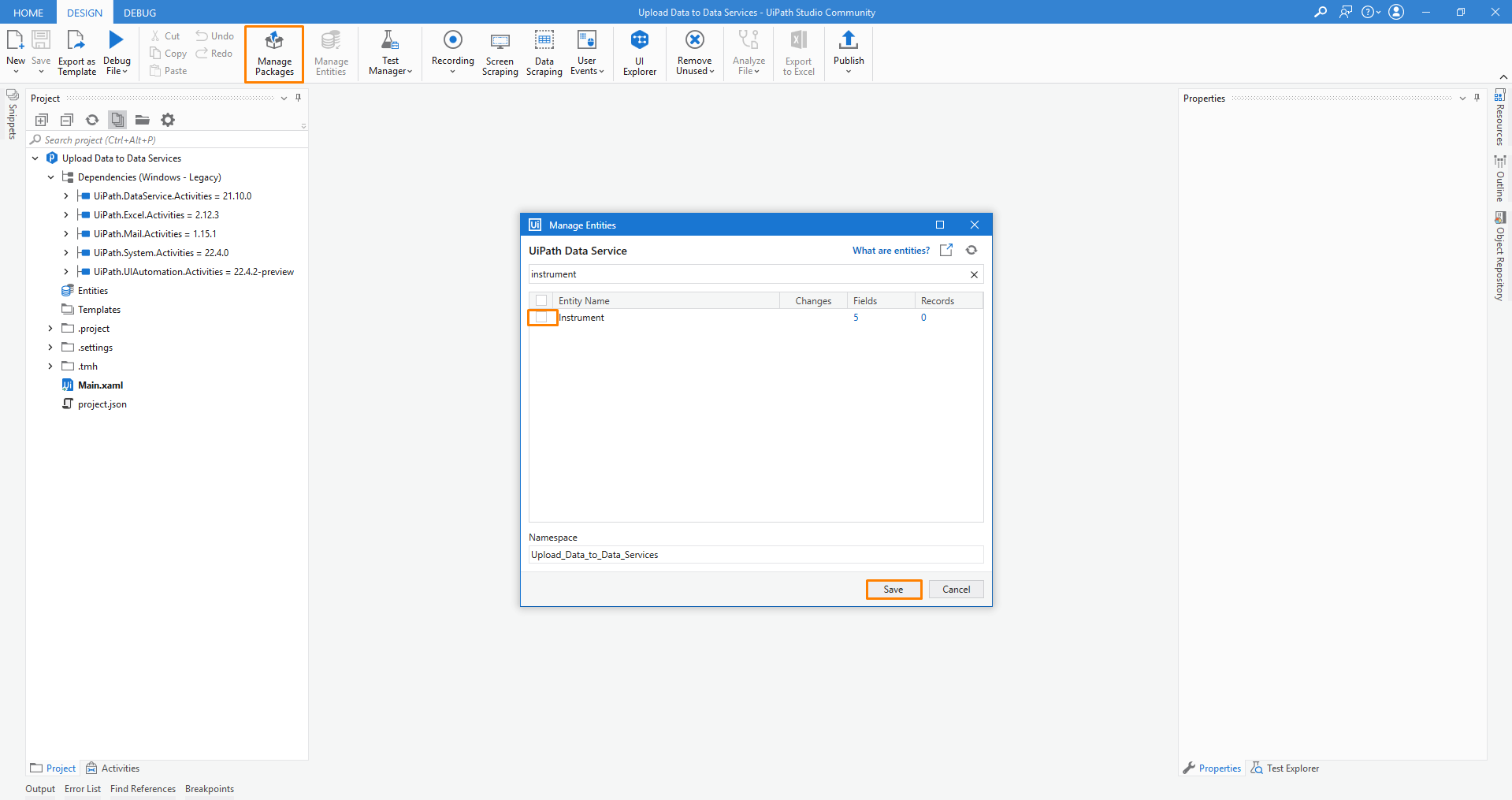
Before we can populate the entity, we first need to connect the entity to Studio. You can do this by clicking on Manage Entities in the taskbar – check the entity you want to add and click Save:
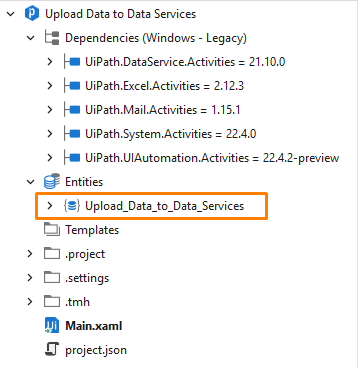
The entity will appear under Entities in your Project Explorer:
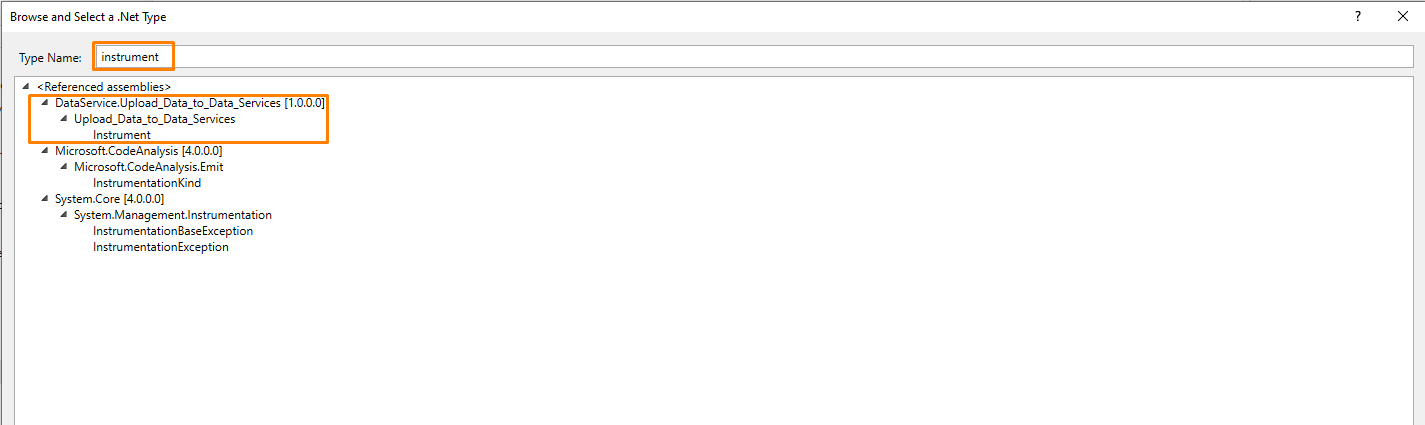
Create a new variable in the Variables pane named ‘InstrumentEntity’. You will need to reassign the variable type to the Instrument entity. Click on Browse for more types in the variable type drop down:
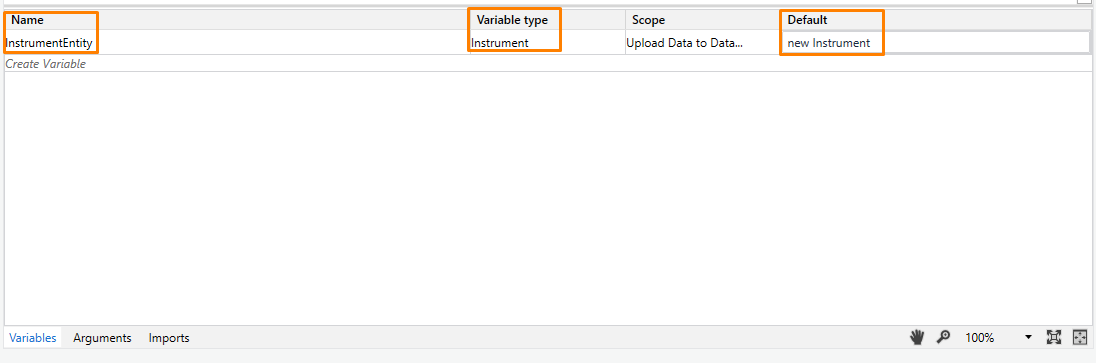
Assign the default value of the newly created variable, InstrumentEntity, to a new instance of the Instrument entity:
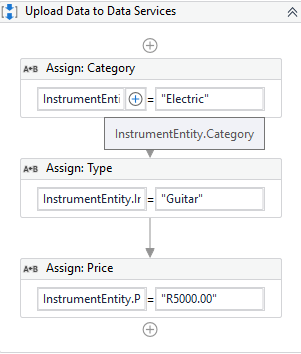
Assign the attributes of the entity to values individually:
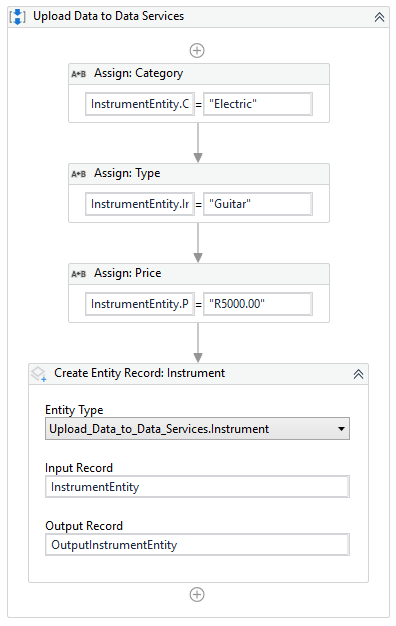
Drag the Create Entity Record activity below the assignment and configure the properties to create the record in the entity:
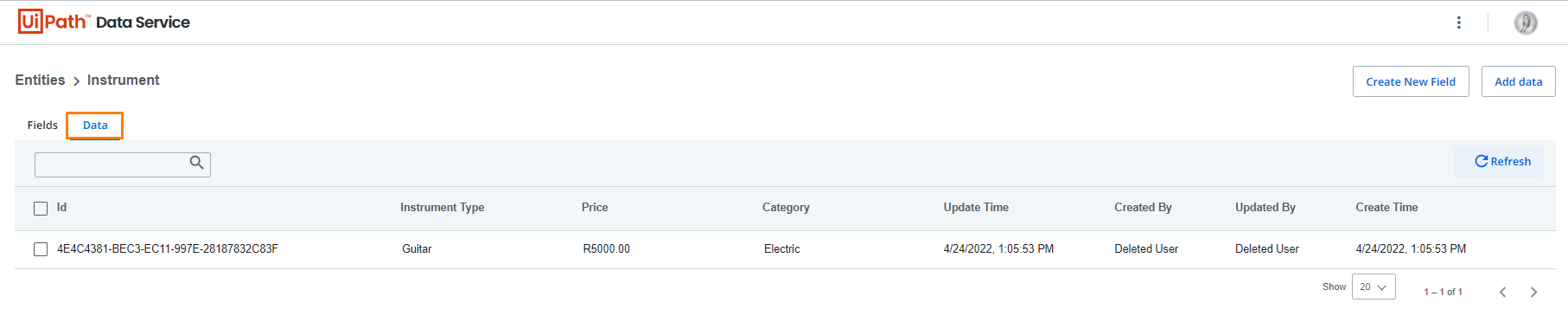
Run the file and test that the process populates the entity before further customising your process:
Taking It Further
Once you have the basics working, the Data Service package has a few other activities that follow the same pattern as Create Entity Record:
- Create Multiple Entity Records – if you are uploading a batch of records (say, from an Excel file), build up a list of entity objects and create them in one go rather than calling Create Entity Record inside a loop.
- Query Entity Records – retrieve records from the entity, with filters, so you can check whether a record already exists before creating a duplicate.
- Update Entity Record and Delete Entity Record – work with existing records by their Id.
It is also a good idea to wrap the Create Entity Record activity in a Try Catch so that a failed insert (e.g. a missing required field or a type mismatch) is logged and handled, rather than bringing the whole process down.
Troubleshooting
- The Data Services icon is missing: Data Services is not enabled on the tenant; see the Enabling UiPath Data Services section above.
- The entity does not show in Manage Entities: Make sure Studio is connected to the same Automation Cloud tenant that the entity was created in.
- New fields are not available in Studio: If you change the entity's fields after importing it, open Manage Entities again and refresh/re-save the entity so Studio picks up the changes.
- It works in Studio but not when run by a robot: The robot's account also needs access to the entity in Data Services, so check the roles assigned to it on the tenant.
The sample code is available in this GitHub repo.