Working With The UiPath Automation Hub API And Postman (Then Getting The Code)

Does your organisation use Automation Hub to capture and consolidate automation ideas and collateral? Have you ever wanted to interact with the data you have in Automation Hub in an automated manner? Well UiPath makes that easier now with the Automation Hub API – no more front-end automations needed to access your data.
Here’s how it works. If you’re looking for specific queries that aren’t covered in this blog post, check out this Postman collection.
What are the steps?
The steps that we will be following are:
- Identifying the URL
- Compiling and populating the bearer token
- Adding the necessary headers
- x-ah-openapi-auth = openapi-token
- x-ah-openapi-app-key (only if you’ve assigned the app key when generating the token)
- Grabbing the results
- Generating the code for reuse in an automation
Deep Dive
Let’s dive deeper into the steps listed above.
Identify the URL
In order to identify which URL (or API Call) would achieve the task at hand, take a look at the different API Calls available here.
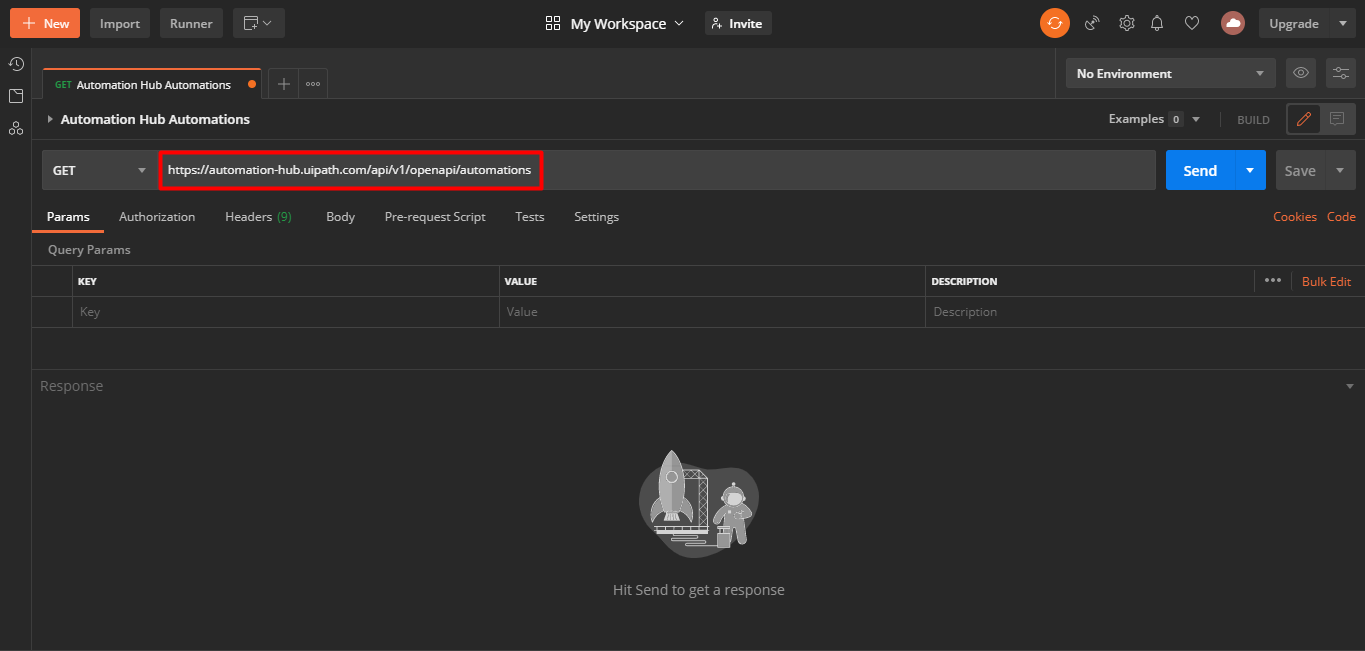
For the sake of this post, we are going to list all automations in our instance. Thus, we will be using the following API call:
https://automation-hub.uipath.com/api/v1/openapi/automations
Pop this URL into Postman:
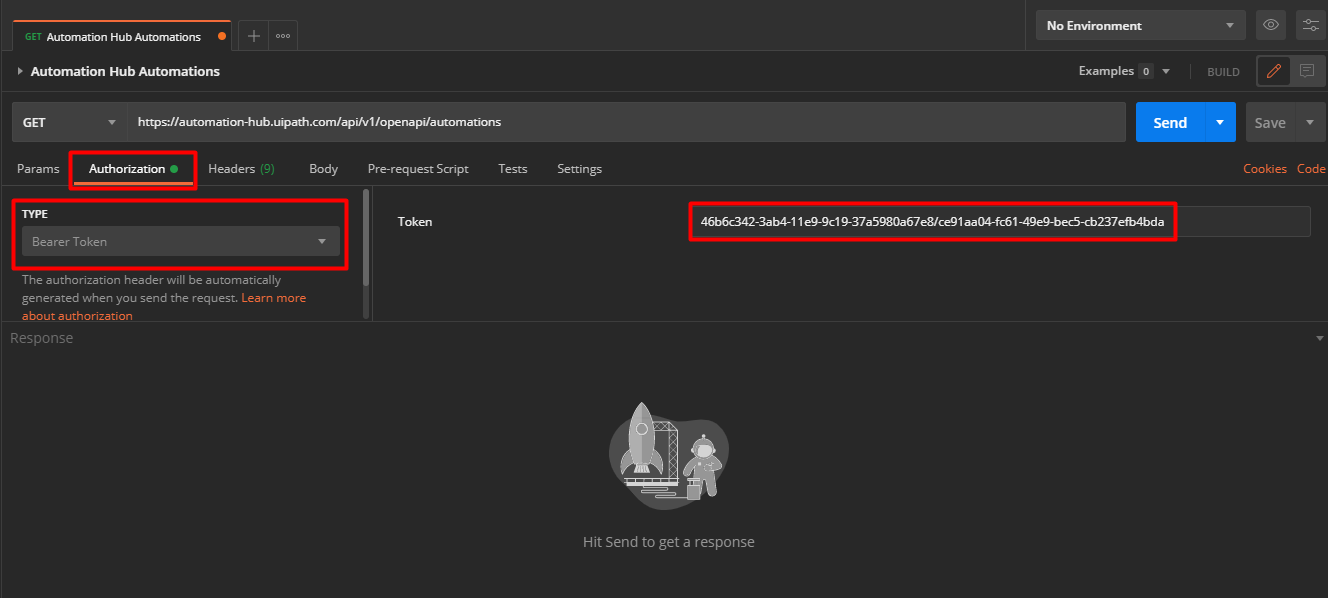
Compile and Populate The Bearer Token
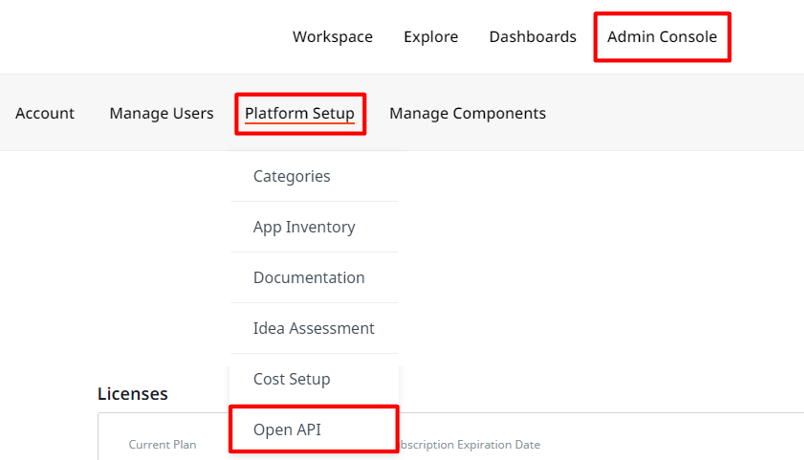
First things first. Make sure Open API is set up on your tenant. You can do that as follows:
- Navigate to the Admin Console within Automation Hub
- Hover over Platform Setup
- Select Open API
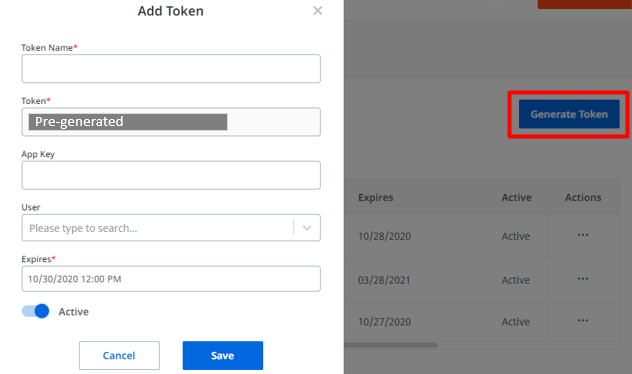
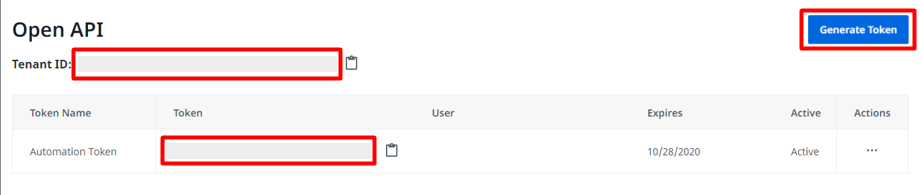
Next, you’re going to want to hit Generate Token and enter the necessary details:
You’re also going to want to take note of your tenant ID because that’s what we are going to use to compile the Bearer Token:
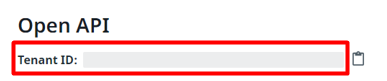
The Bearer Token is made up by concatenating your tenant ID and your generated token separated by “/”.
An example is:46b6c342-3ab4-11e9-9c19-37a5980a67e8/ce91aa04-fc61-49e9-bec5-cb237efb4bda where:
46b6c342-3ab4-11e9-9c19-37a5980a67e8is the unique Tenant IDce91aa04-fc61-49e9-bec5-cb237efb4bdais the specific token generated for the user account
Add the Bearer Token under the “Authorization” tab in Postman with the Type set to “Bearer Token”:
Add Headers
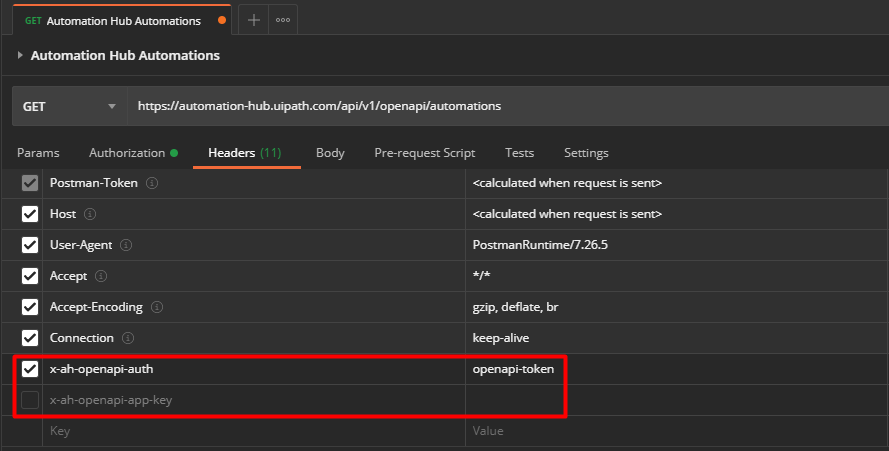
If you have set up app key as an extra security measure when you generated the token, you’ll need to add “x-ah-openapi-app-key” to your headers and assign it to the value you created.
Regardless of whether you populated the app key or not, you’ll need to add “x-ah-openapi-auth” to your headers and assign it to “openapi-token”:
Grab The Response
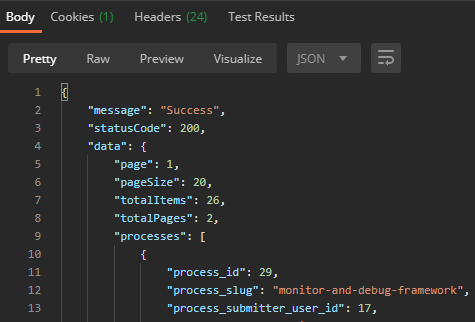
Once you’ve hit send in Postman, you make a sacrifice to the universe and wait for your results which should look something liiiiikkkkeeee this:
Generate Code For Automation
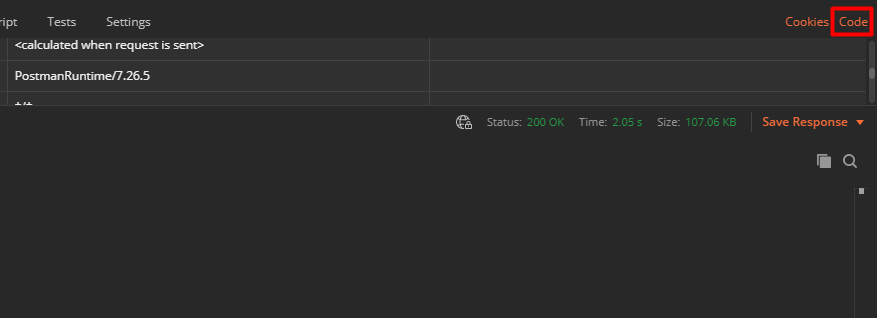
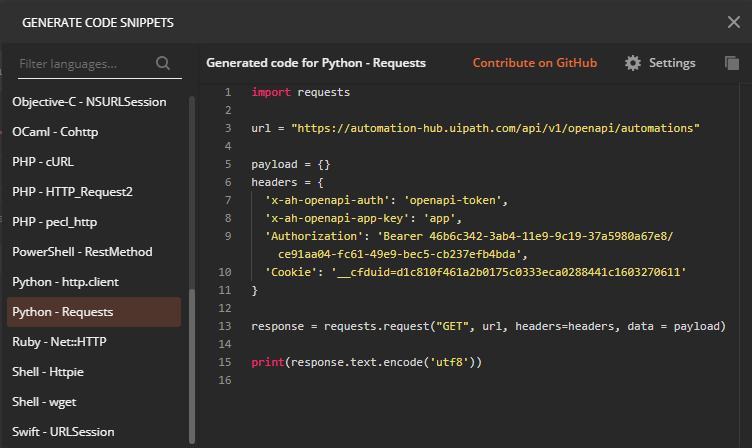
Now that you’re getting results, you’ll most likely want to get this automated. Well then let’s get the code (for whatever language we want) from Postman.
Click on code in the top(ish) right-hand corner in Postman:
Select your language then copy and paste the code:
Did you get stuck anywhere? Was this helpful?
If you have any questions, issues or feedback, drop a comment below or reach out to jacqui.jm77@gmail.com